01 What you need
Two minutes and four things:
charger
Wi-Fi + password
5 digits
02 First-time setup
About two minutes. You'll only do this once — it remembers everything.
- Plug it in. USB-C power. The WingsAbove logo appears, then the flight card. No aircraft yet — that's normal.
- Open the menu. Tap ⚙ MENU, top-right.
- Connect Wi-Fi. Tap WiFi Setup → pick your network → type the password → tap the ✓ key. You'll see "Connected!"
- Set your location. The ZIP keypad appears. Type your 5-digit ZIP → OK (✓). "Location set."
- You're live. Real flights fill the card, and the radar fills in over a map of your area.
03 Reading the screen
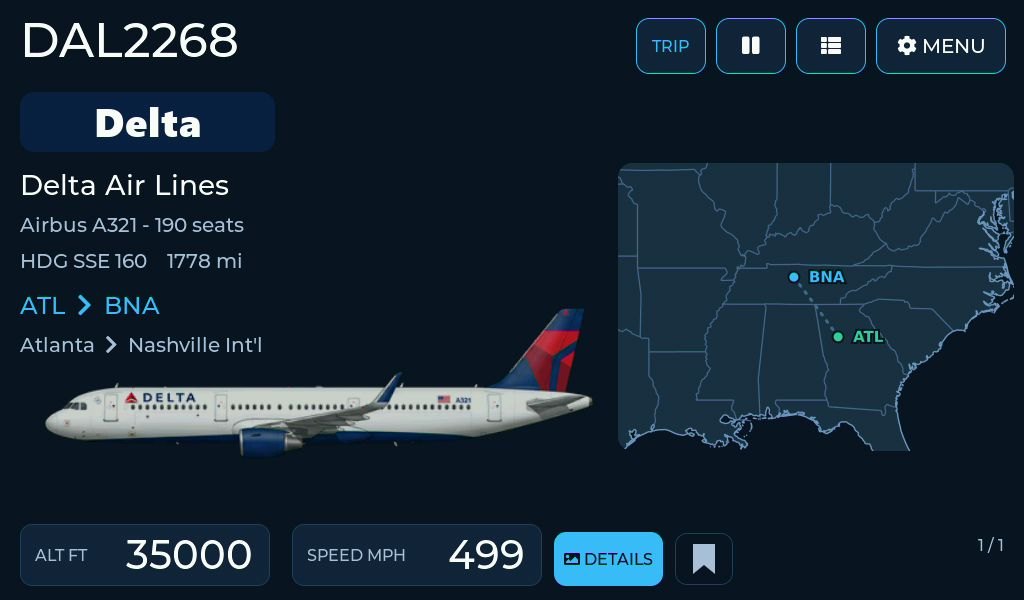
The flight card on the left, the radar on the right.
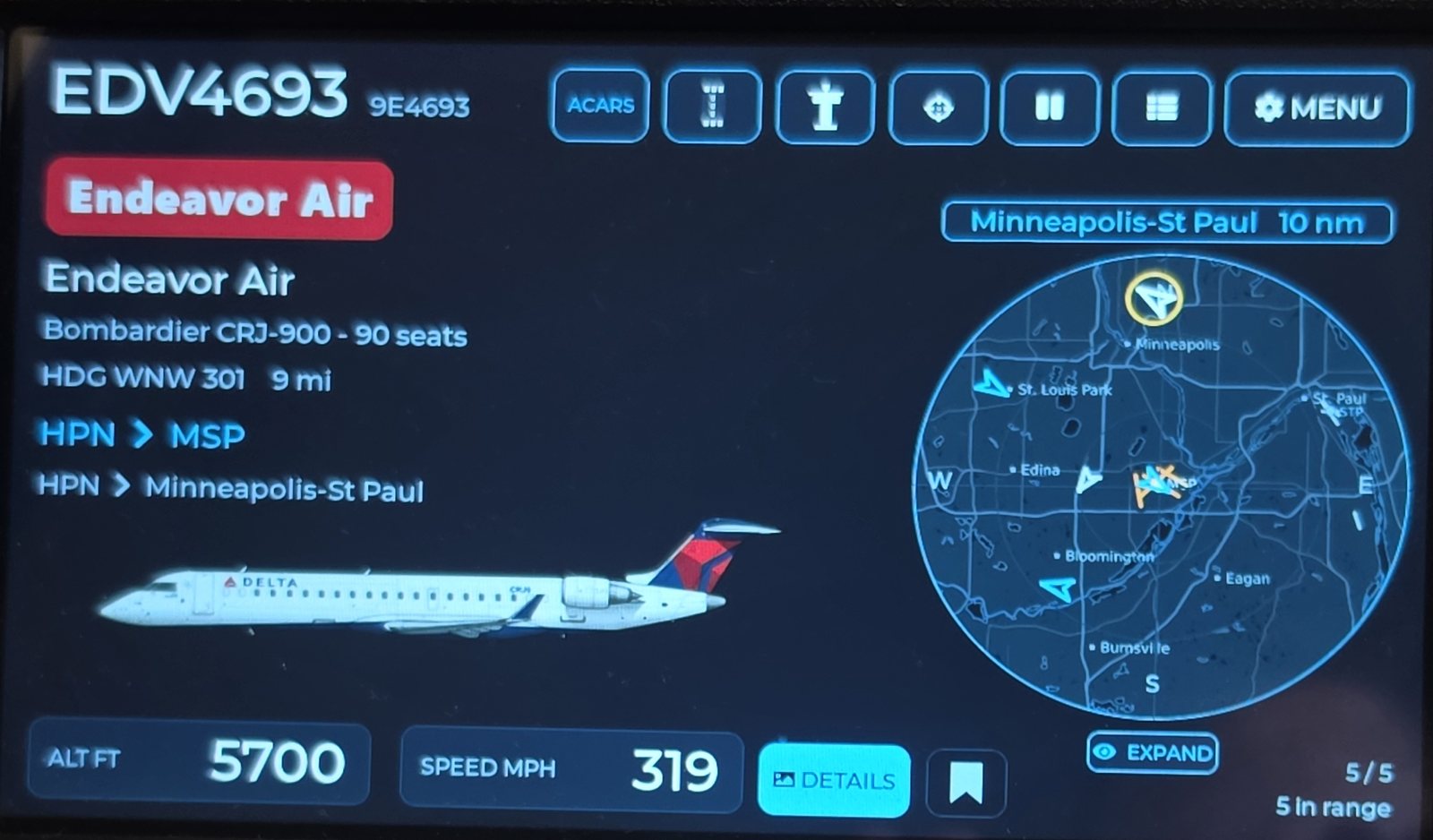
The story of the plane
Airline (or an olive U.S. MILITARY / crimson AIR AMBULANCE nameplate), aircraft type & seats, heading + distance, and the full route with city names. A faded picture of that exact aircraft sits behind it, so you can tell which flight it is.
Where everything is
Every aircraft in range over a real map of your area, north-up. The center dot is you; each arrow points the way a plane is flying; an amber ring marks the one on the card.
Pause · List · Menu
⏸ Pause holds the current flight. ≣ List shows everything in range to jump to. ⚙ Menu opens settings.
04 Getting around
Four more screens live just off the edges of the card. Pull one in from its edge: swipe on the touchscreen, or in WingsAbove Cloud drag with the mouse — or skip the dragging and click the small tab at that edge, or press the arrow key that points at it.
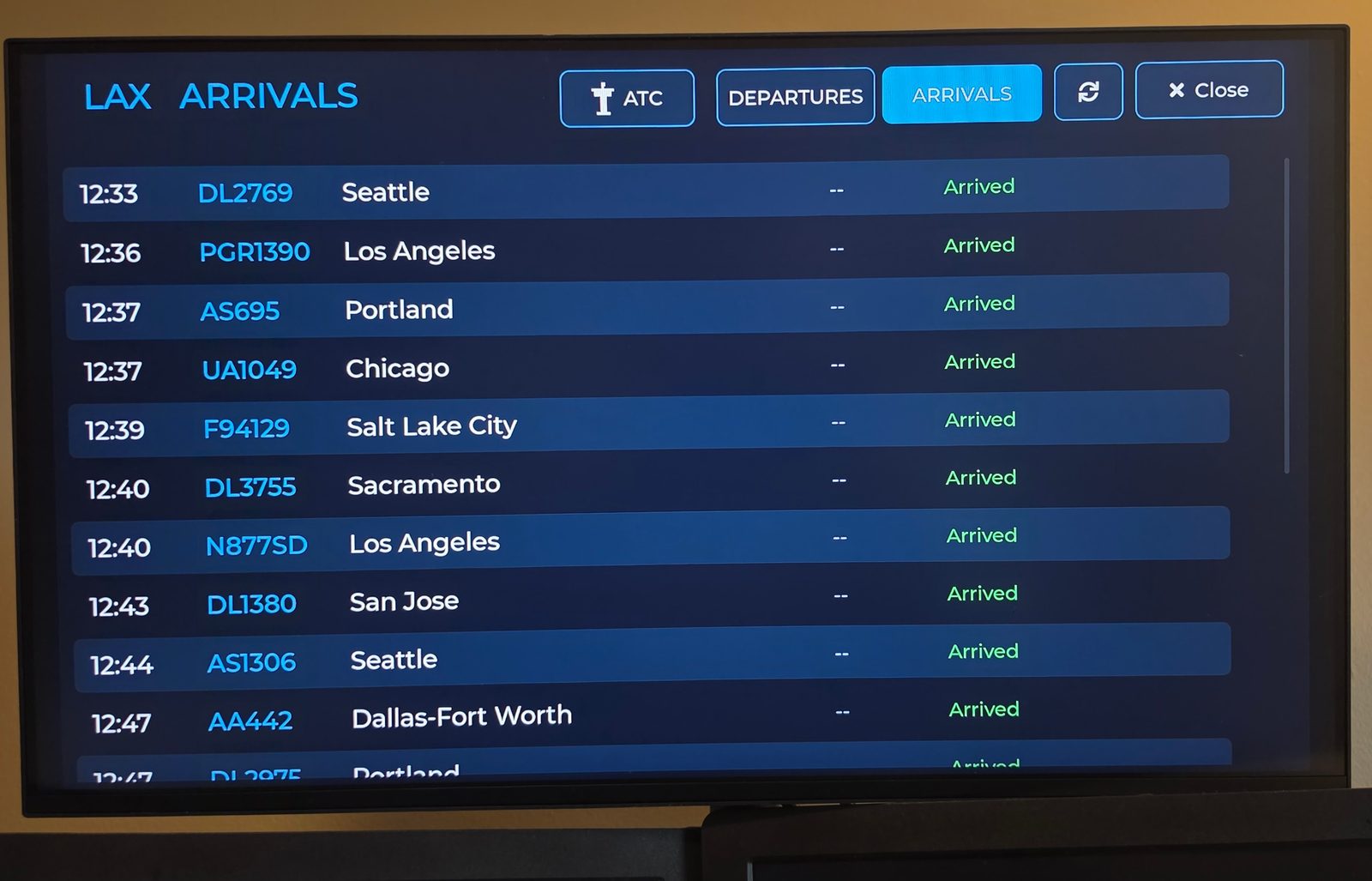
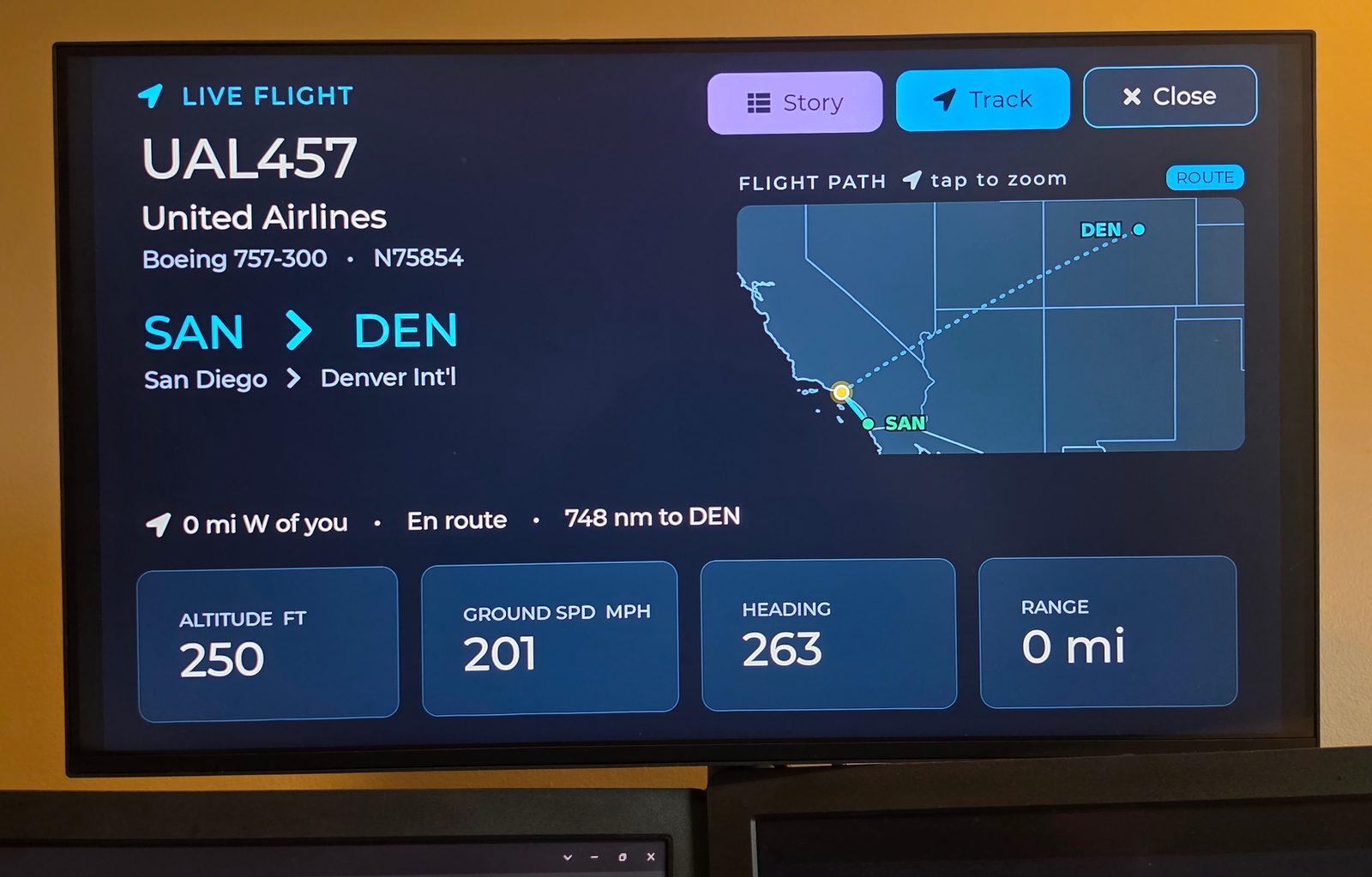
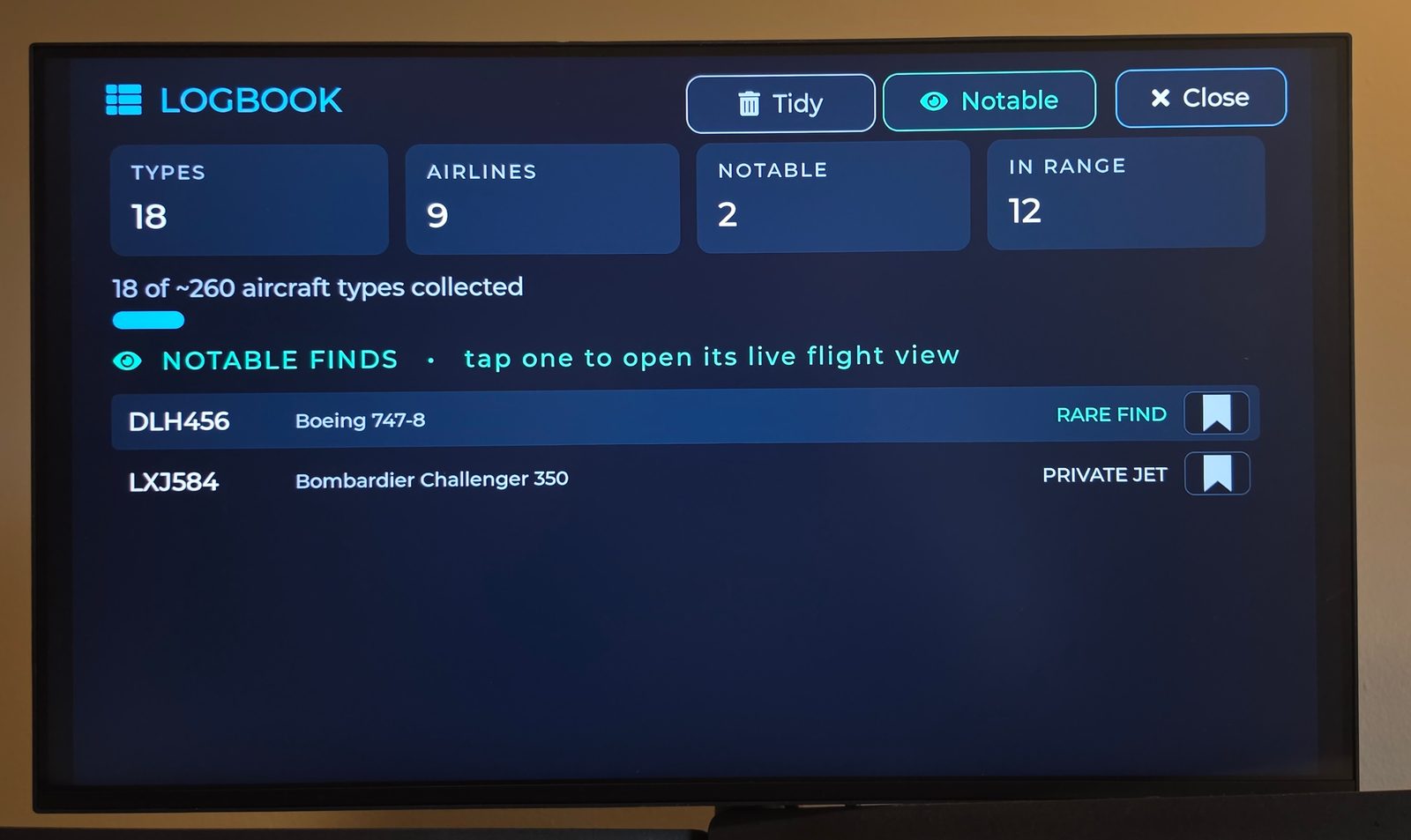
Every flight you’ve chosen to track, with a badge when one departs, lands or changes gate. Tap one to follow it again.
05 Getting into a flight
This is where it gets fun — go from a card to following a plane across the planet.
The full spec sheet
Tap 📷 DETAILS (next to the Speed gauge) for the big aircraft picture, the stats (range, cruise, seats — plus retail price for private jets and fleet + nickname for military), and a route map.
Ride along on the map
On the Details screen, tap the route map → a full-screen live view: the plane moving along its path, live tiles, and an ETA. Tap the map to zoom out: Route → Regional → National → Wide.
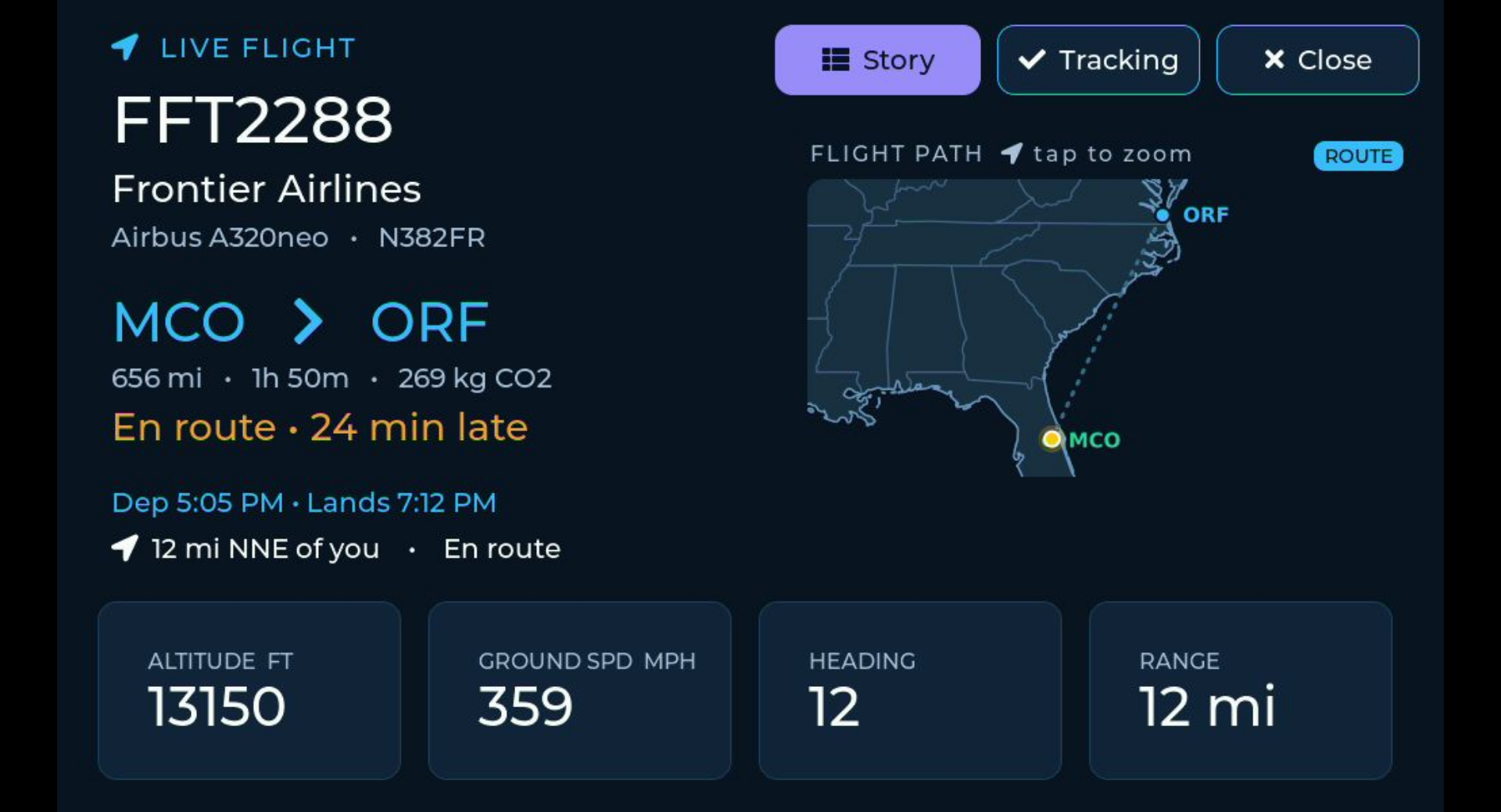
Watch any flight on Earth
Menu › Track Flight → type a callsign (DAL1878) or tail (N123AB). WingsAbove locks onto that flight anywhere and follows it live — perfect for a loved one's plane. Recent searches become one-tap chips.
Pick from a list
Tap ≣ LIST to see everything in range and jump straight to one — easier than hunting for a tiny radar blip.
06 Moments & standby
The screen has a life of its own.
The wow flyovers 🎉
When something special passes — a 747 "Queen of the Skies," an A380, a military jet, a medical flight — the screen takes over full-screen with a hero image. These are the ones to catch on video. Tap the colored pill to replay one.
When the sky's quiet
With nothing in range, a branded panel sweeps the radar and shows your day's stats — planes seen, farthest, notable.
Read what the crews are saying
ACARS is the text system airline crews use in flight — dispatch, maintenance, catering, and the odd moment of honesty at 30,000 feet. Switch it on and a real message shares the quiet-sky panel instead of an empty screen.
Tap the message to open the full list, or use the ACARS button on any aircraft card. Where we can identify the flight, TRACK FLIGHT starts following it like any other.
A message says over a place when we found that aircraft live on the map, and heard near a place when all we know is which ground station picked it up — those are different things, so the screen says which.
Menu › More Settings › ACARS
Messages are curated and anonymised by acarsdrama.com. Crews are never identifiable.
07 Screen Cast — watch it on any screen 📺
Put your live WingsAbove on a TV, tablet, phone, or laptop — or record clean footage. (Every model.)
- Menu › System Status, then tap 📹 Cast (it flips to ON).
- Read the address shown on the status screen, e.g. http://192.168.1.50:81
- Open it in a browser on any device on the same Wi-Fi — the live display, full-screen.
- Creators: point OBS (a Browser source) at the same address for glare-free capture.
08 Crew Mode — follow one pilot's flying ✈️
Point the display at a pilot's schedule instead of the sky overhead. It shows what they are flying now, what is next, and how long until they are home. Built for the family at home as much as for the pilot.
- On a phone or computer, open crew.wings-above.com and paste the calendar subscription link from the crew portal (the link you would use to add the schedule to a phone calendar).
- Tap Check schedule. It lists the flights it found and what it left off (hotels, report times, reserve), then gives you a 6-digit code.
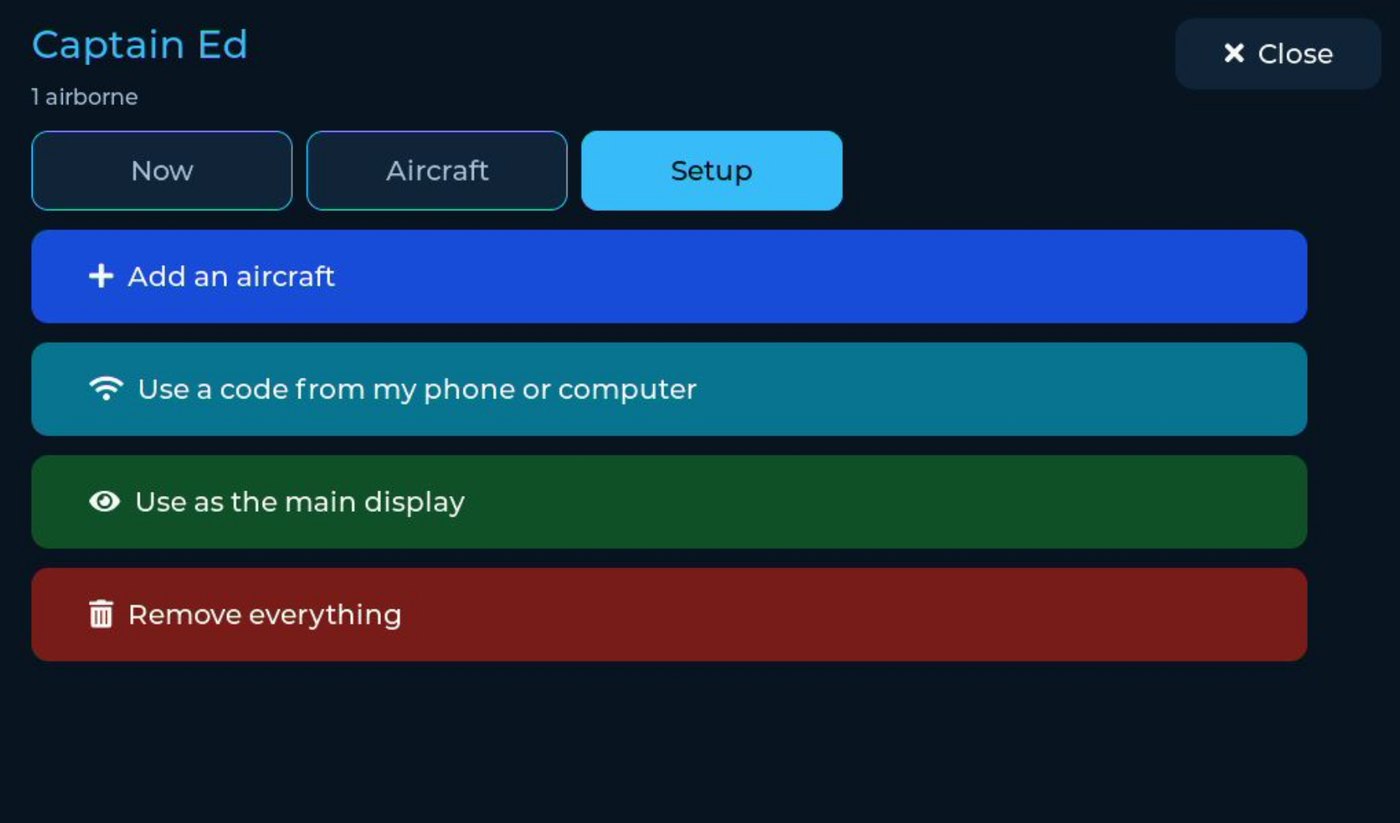
- On the display: Menu › Crew › Setup › Use a code from my phone or computer, and type the code.
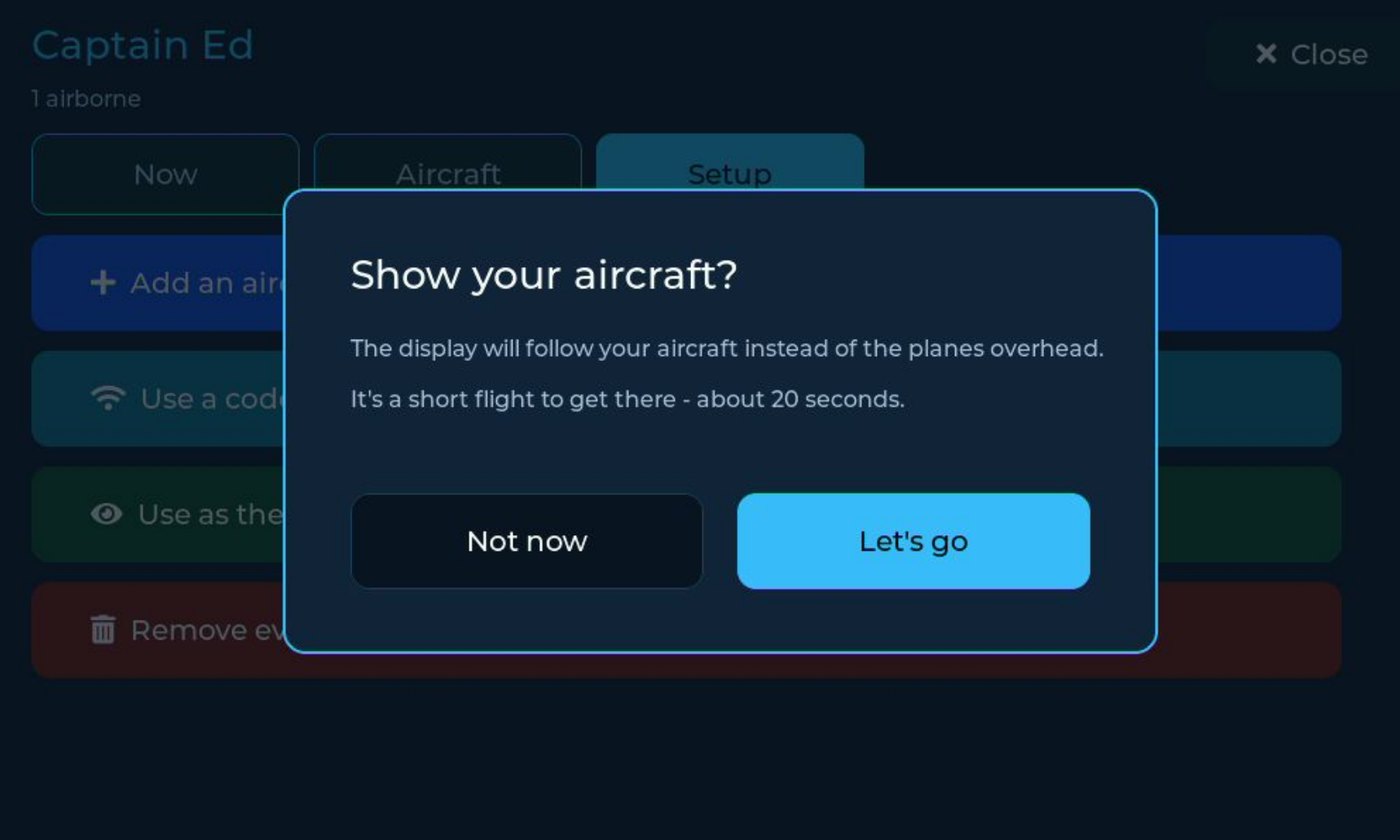
- Tap Use as the main display, then Let's go. The display restarts (about 20 seconds) and from then on follows the schedule instead of the planes overhead. Tap the same button to switch back.
How long until they are home
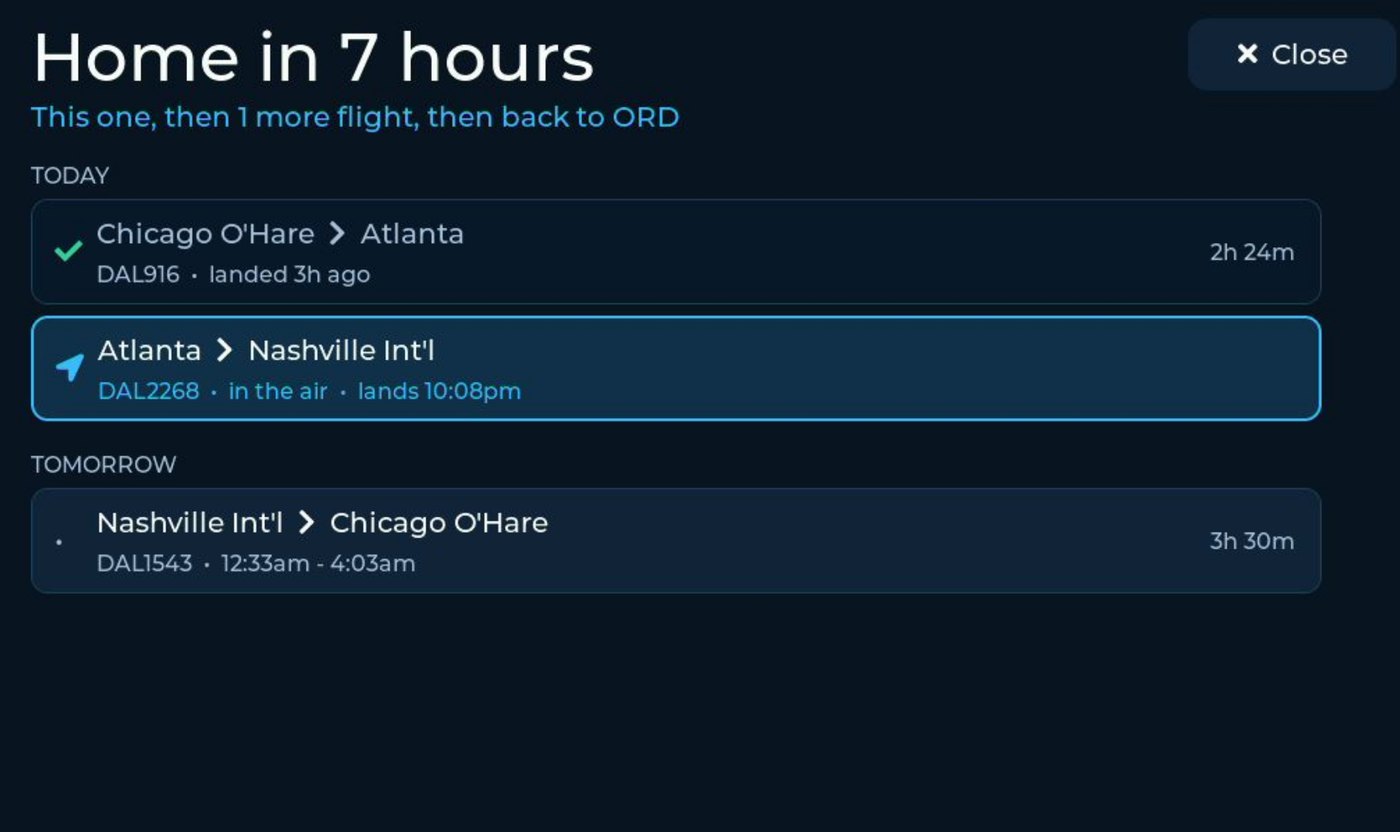
Tap TRIP on the card for the whole trip, day by day: what has landed, what is in the air and when it lands, what is tomorrow, and the line a family actually reads first — Home in 7 hours.
The schedule at a glance
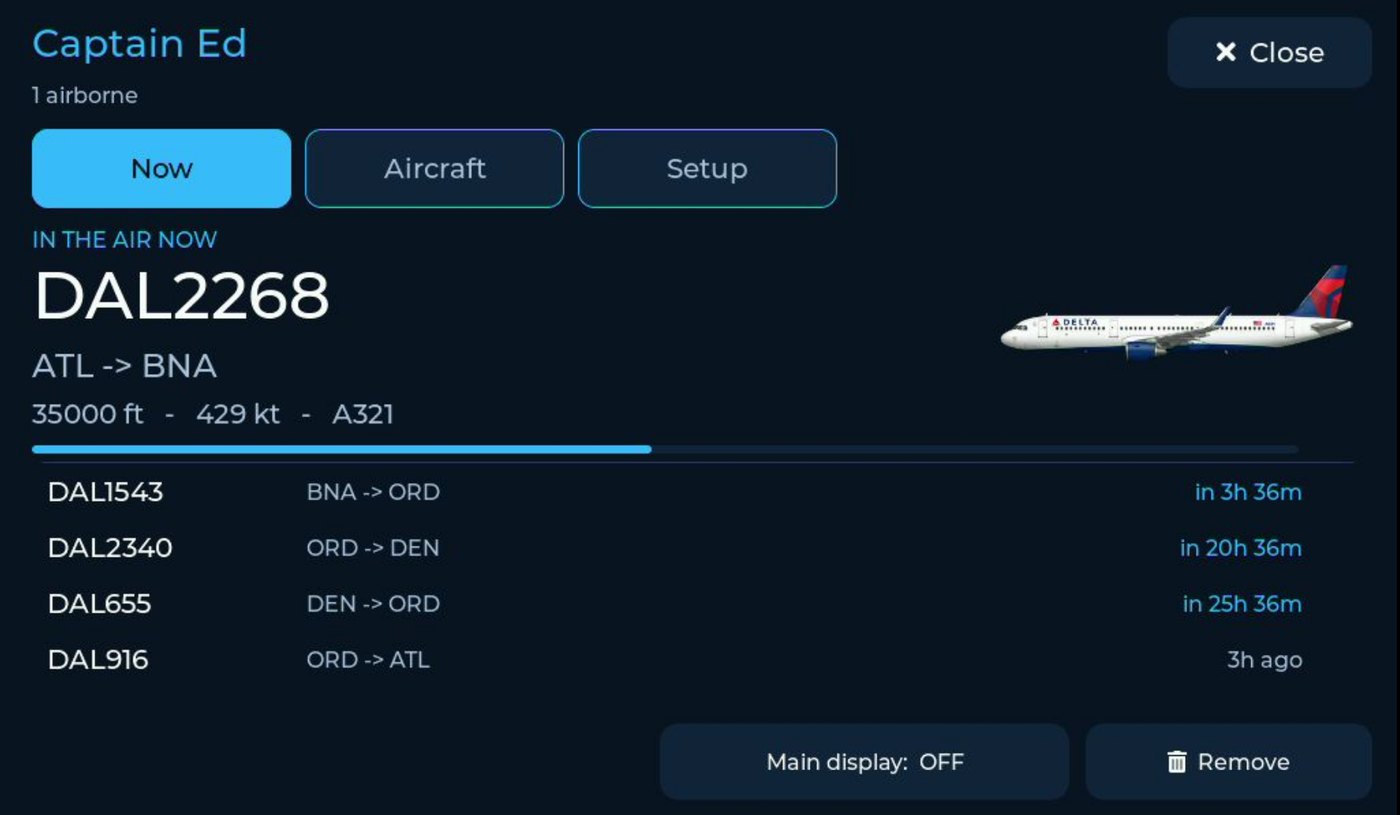
Menu › Crew › Now shows the flight in the air with its progress bar, the next legs with their countdowns, and the one that just landed.
Standby that knows the next flight
When nothing is flying, the screen shows the next leg's route and the aircraft it is scheduled on. Deadheads are marked as riding, not flying; hotels and report times are left off.
The airplane itself
Tap 📷 DETAILS for the big picture and the spec sheet — seats, range, cruise, fuel, size. Turn the aircraft picture on or off with Crew Picture in More Settings.
09 The menu
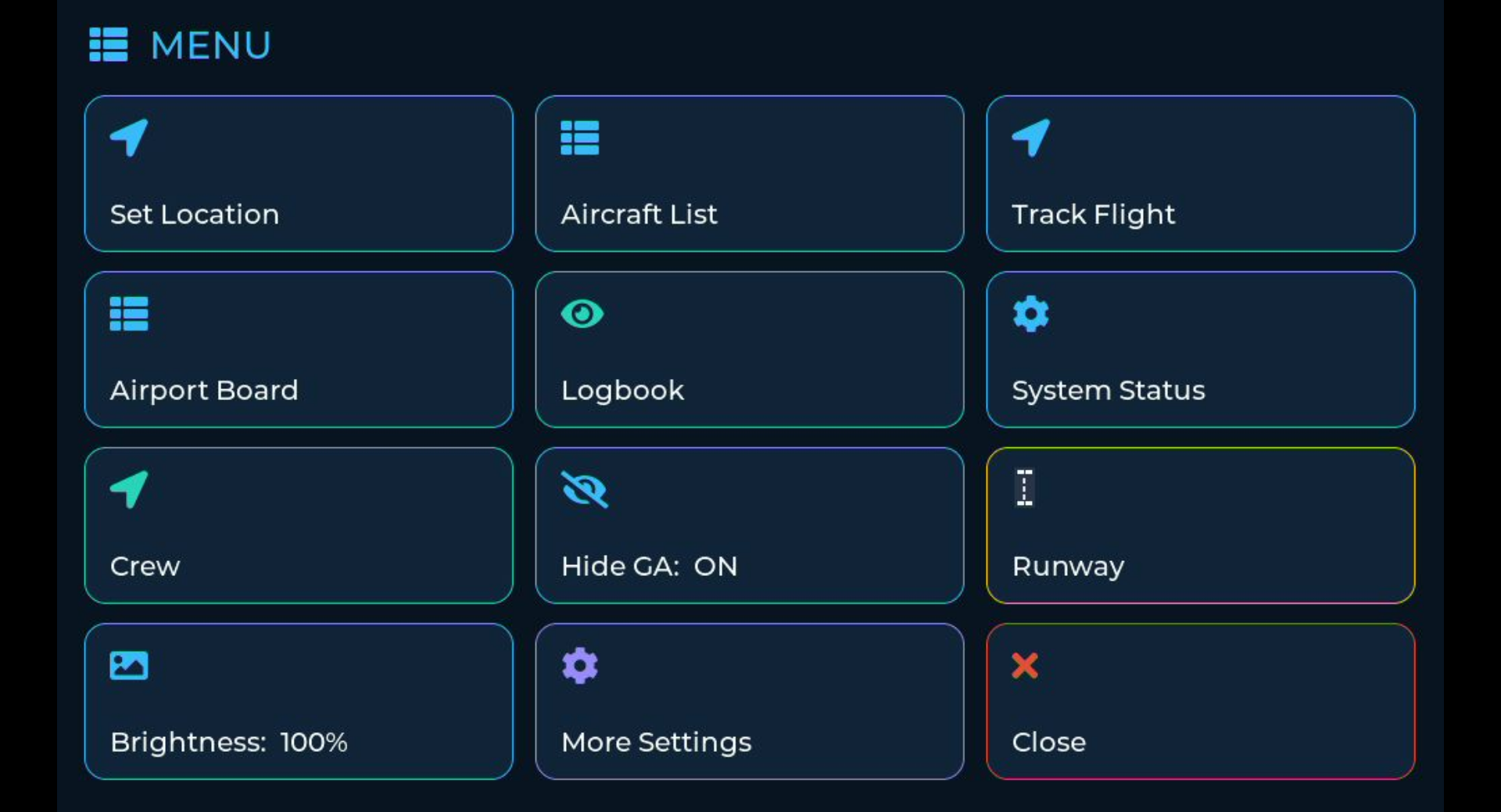
| Setting | What it does |
|---|---|
| Aircraft List | See everything in range and jump to one |
| Track Flight | Type a callsign / tail and follow that flight anywhere |
| Set Location | Change your ZIP / location |
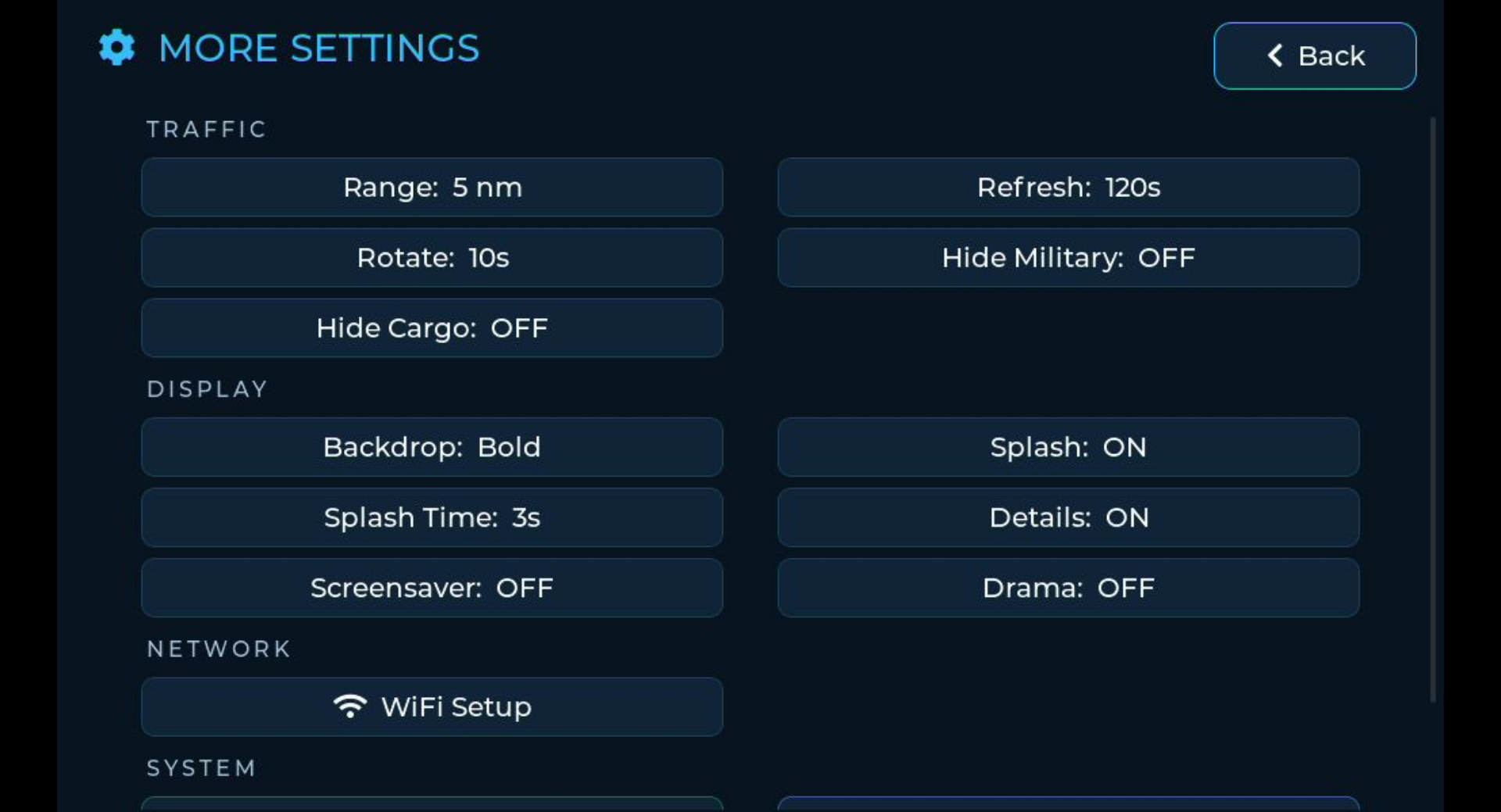
| Range | How far to look — 5 · 10 · 15 · 20 nm (lives under More Settings) |
| Hide GA / Cargo / Military | Filter those out of the rotation |
| Airport Board | Departures and arrivals for your field, like the hall screen |
| Logbook | What you have seen — totals, rare finds, farthest |
| Runway | The field from above: which runway is in use and who is on it |
| Crew | Follow a pilot's roster instead of the local sky |
| Brightness | Dim it for a bedroom or a dark office |
| Demo Mode | Sample aircraft (great with no Wi-Fi) |
| Splash · Backdrop · Rotate | Moment takeovers, artwork fade, and dwell times |
| System Status | Diagnostics, Screen Cast, artwork updates, reboot |
| Factory Reset | Erase all settings and start fresh |
10 Tips & troubleshooting
📷 Grab a screenshot
Turn on Screen Cast (Menu → System Status), open the address it shows in any browser, and screenshot that. You get a clean, glare-free capture at full resolution — and it works from the phone already in your hand.
Use a wall charger
A computer's USB can reset the device randomly. A plain USB wall adapter avoids it entirely.