01 What it is
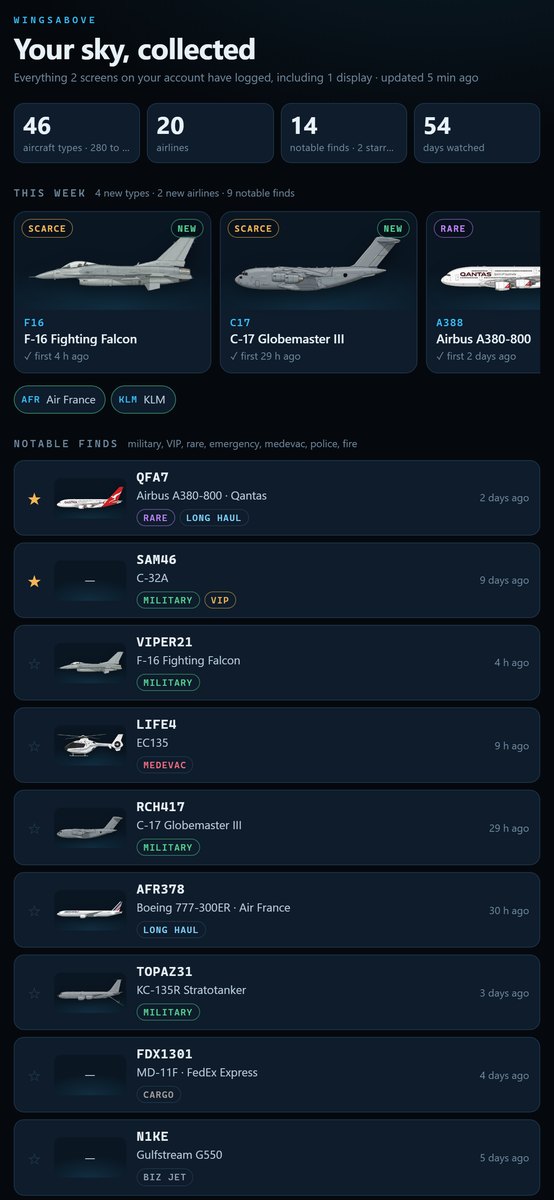
Think of it as a field guide that fills itself in. Leave WingsAbove running on any screen that is signed in to your account, on a phone, a tablet, a computer, or the display on your desk, and it keeps a logbook of what passed. The Collection is that logbook, drawn: a card for every aircraft type with our own artwork, the airlines you have seen, the notable finds (military, VIP, rare, emergency, medevac, police, fire), when each one first appeared, and how rare it is against every other WingsAbove screen.
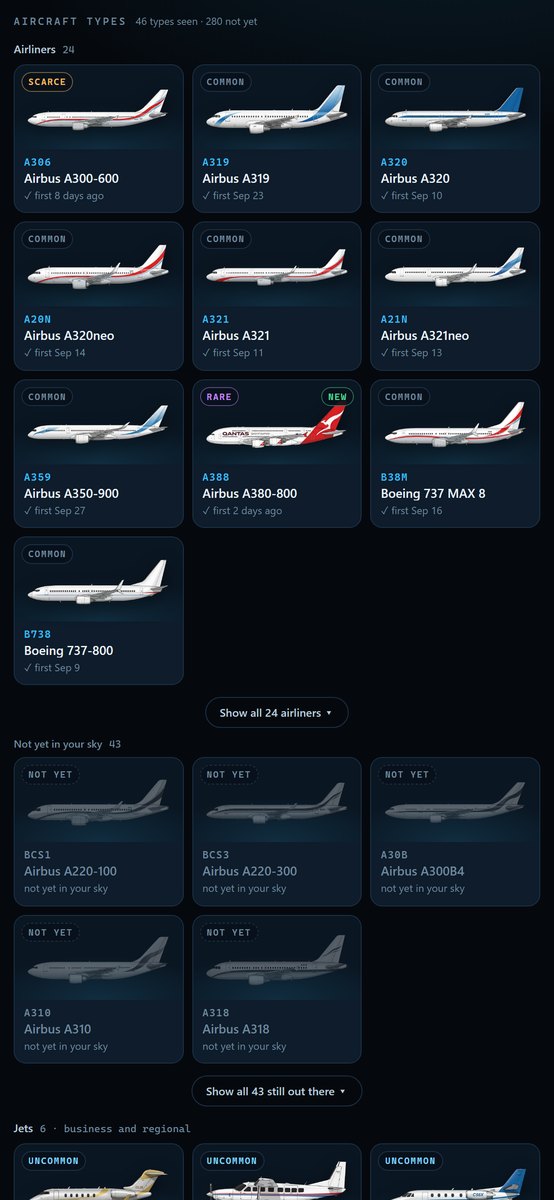
Nothing in it is simulated. Every card in color is an aircraft a screen on your account really saw within its range. The gray cards are the types WingsAbove has artwork for that none of your screens has caught yet.
02 Where to find it
Hold the phone upright
Open cloud.wings-above.com or the WingsAbove app and turn the phone upright. A bar appears along the bottom: Sky (the live display), Collection, and Settings. The first time you open it in a session it lands on the Collection; tap Sky for the live picture. Turn the phone sideways and the display takes the whole screen again.
The Settings chip
In landscape, on a tablet or a computer, the chip in the bottom-left corner of the display has a Collection button next to Settings. The Collection opens over the live display, which keeps catching underneath. Press Esc, tap ×, or tap Sky to go back.
Its own page
cloud.wings-above.com/collection shows your collection on its own, without starting the display. Sign in with the email on your account. Useful on a phone in a pocket, or to show someone what you have caught.
03 Adding your display
The 7" display keeps its own Logbook (Menu › Logbook). Link it once and everything it has logged joins your account, and everything it logs from then on keeps arriving.
- On the display, open Menu › Logbook › Link. It shows a six-letter code and a QR code. This needs software v2.2.165 or later; the display updates itself over Wi-Fi.
- Scan the QR code, or go to cloud.wings-above.com/link. Sign in with your account and enter the code.
- Done. The display's Link button reads Synced. Stars you set on the display show in the Collection; stars you set in the Collection reach the display on its next sync, within a few hours.
04 Reading the page
Types, airlines, finds, days
How many aircraft types and airlines your screens have logged, how many notable finds (and how many you have starred), and how many days a screen of yours has been watching. The types counter also says how many are still to go in WingsAbove's artwork library.
What is new
The types and airlines that appeared for the first time in the last seven days, and the week's notable finds. New cards carry a green New badge. When a display is linked for the first time its whole logbook arrives at once; the page says so and waits for real firsts before it starts marking things new.
Notable finds
Every aircraft a screen flagged as notable, with its picture, callsign, type and airline, and chips for the reason: Military, VIP, Rare, Emergency, Medevac, Police, Fire, Drone, Biz jet, Cargo, Long haul. A ★ means you starred it on one of your screens. Finds that have rolled off a screen's own list stay here under Earlier finds.
Rarest in your sky
Once enough WingsAbove screens are sharing, each type gets a tier from Common to Ultra rare: the share of screens that saw it in the last 60 days, anonymous and aggregate. Until then the page shows Spotter's prizes, the types the display itself marks rare.
Aircraft types, seen and not yet
Grouped as Airliners, Jets, Turboprops, Light aircraft, Helicopters, Military, Drones. Cards in color are types you have caught, with a check mark and the date of the first one. Under each group, Not yet in your sky lists the types in WingsAbove's library that none of your screens has logged, in gray. Each group shows ten cards; Show all opens the rest.
Airlines, A to Z
A short row of the airlines you know first; Show all opens the whole list grouped by first letter, with a jump strip and a search box. Callsign prefixes WingsAbove has not matched to an airline name yet sit at the end under Codes only. They count all the same.
Milestones and days watched
Quiet markers as the collection grows: your first military aircraft, your first jumbo, every US major airline, 50 then 100 types, 30 then 100 days watched. The calendar underneath shows the days a screen of yours was on, over the last twelve weeks.
05 Tap any card
Every card and every find opens its own page.
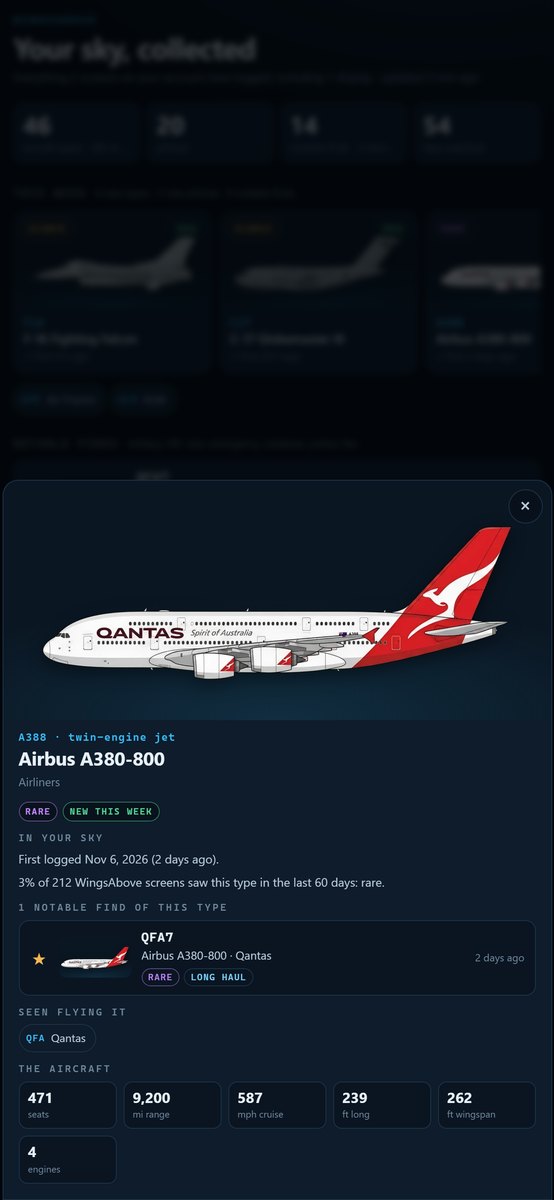
The aircraft and your history with it
The artwork large, the name and what kind of aircraft it is (a twin-engine jet, a single-piston, a helicopter), how rare it is across the fleet, when you first caught it, the notable finds of that type and the airlines you have seen flying it, and the figures the display's Details sheet shows: seats, range, cruising speed, length, wingspan, engines. For a gray card, how common the type is tells you how likely it is to turn up.
The airframe as your screen saw it
The callsign, the type and airline, a sentence for each reason it was notable, when it was first logged and whether it is starred, with a link to the type's page. What your account knows about an airframe is what your screens logged; its route and other sightings are not tracked yet.
06 How the logging works
A screen logs while it is running: the aircraft types, airlines and notable finds that pass within its range, the same range you see on the radar. A display saves its logbook every few minutes and, once linked, sends it to your account; WingsAbove Cloud and the apps do the same while the display is on screen. The account keeps what a single screen cannot: the date each type and airline first appeared, and every notable find ever logged, long after it has rolled off a screen's own list of thirty.
Stars travel both ways. Star a find on the display and it is starred in the Collection; un-star it in either place and the other follows on its next sync.