Crew Mode · for pilots & the people at home
Your whole line of flying, on one screen at home.
Upload your current crew schedule, send it to the 7-inch WingsAbove display with a one-time pairing code, and Crew Mode follows those loaded flights — what is airborne, what is next, what just landed, and how long until you are home.
Setup happens from your phone in about a minute. The pairing code works once; if your schedule changes, upload the revised roster and replace the old one.
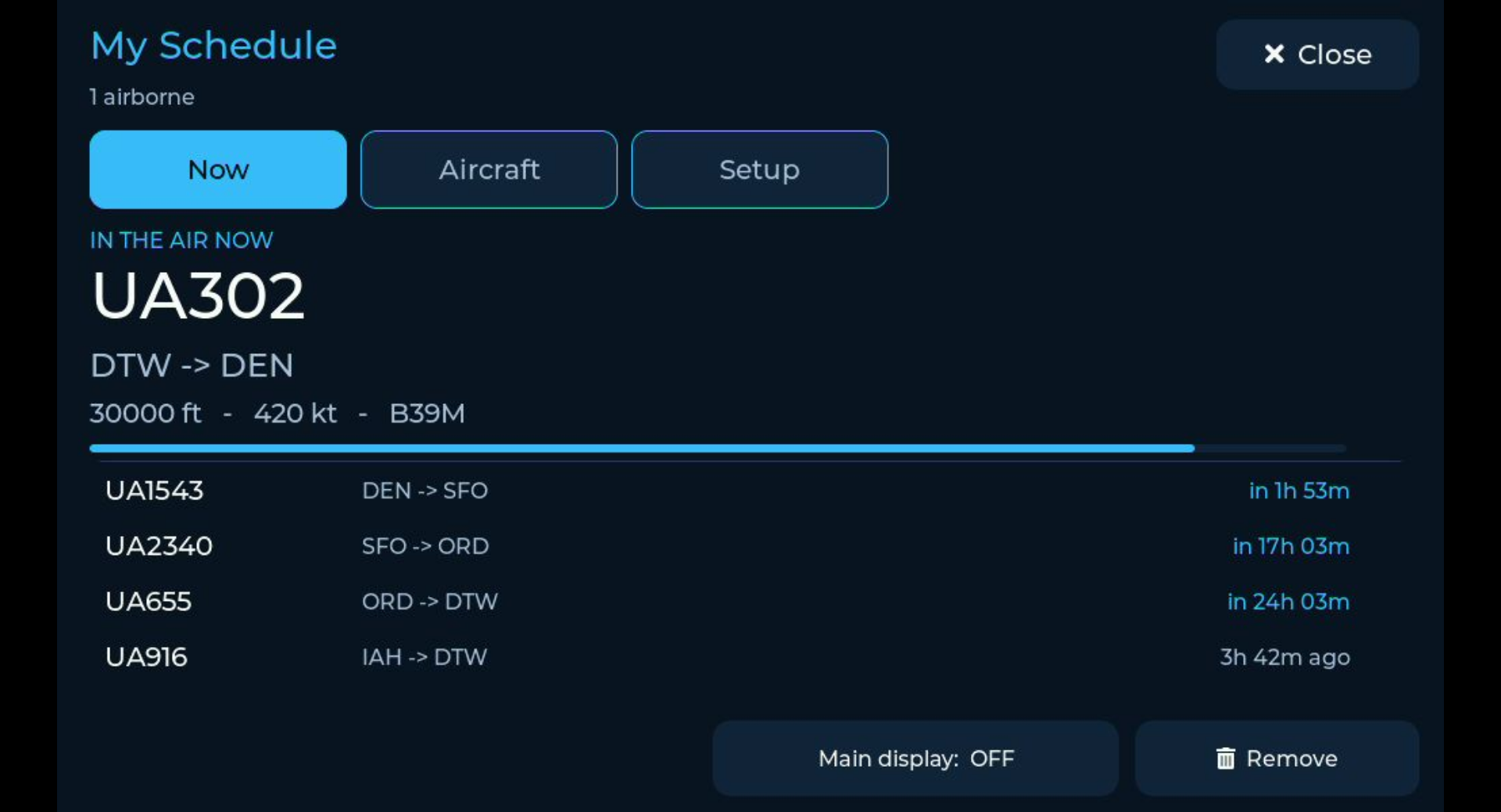
The schedule moves when the flying moves — not on a slideshow timer.
Most flight trackers answer what is overhead right now.
Crew Mode answers where is my line of flying.
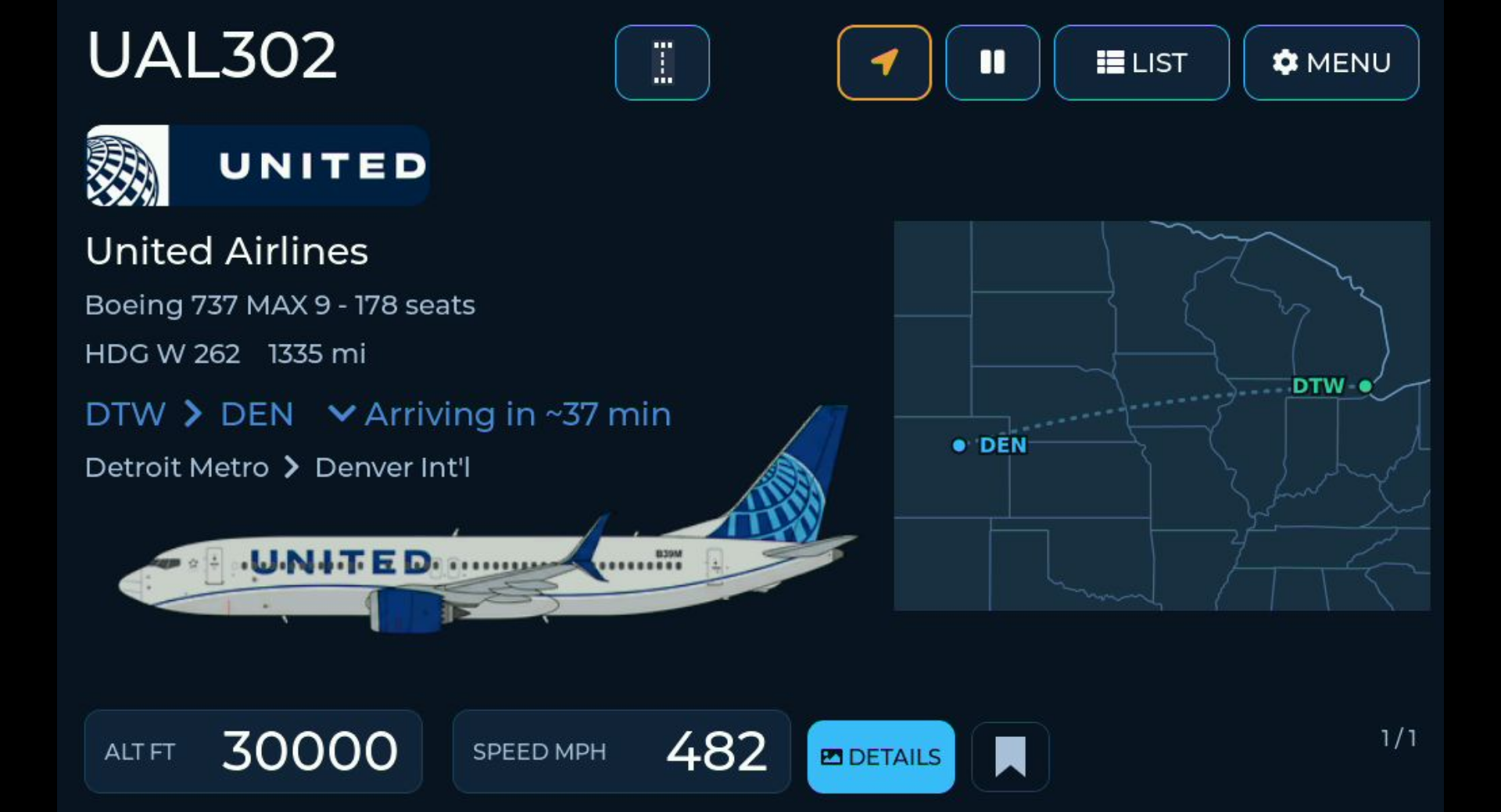
The schedule turns into the flight.
The same rich aircraft card WingsAbove uses for overhead traffic becomes the subject of the screen: the real airframe in its airline paint, route, altitude, ground speed and live map.
- It follows the operating flight rather than making someone at home search for it.
- Tap into the details for the live path and the aircraft behind the callsign.
- If there is no position to show, it says so. Crew Mode does not invent a location.
Something useful is still on the screen.
When nothing is airborne, Crew Mode does not become an empty radar. It shows where the trip is, what departs next, what has already happened, and the shape of the flying still ahead.
Live aircraft card, route, altitude, speed and map.
Current station, next departure, legs remaining and time until home when the feed supports it.
See what is airborne, what is next out and what just landed.
See how it actually went: off/on versus schedule, block time and the aircraft that flew it.
From setup code to live aircraft.
This is the current working Crew Mode flow, captured from the product — not a concept animation.
Full walkthrough · 4:02 · video loads only when you press play
Your phone transfers the schedule. The display remembers it.
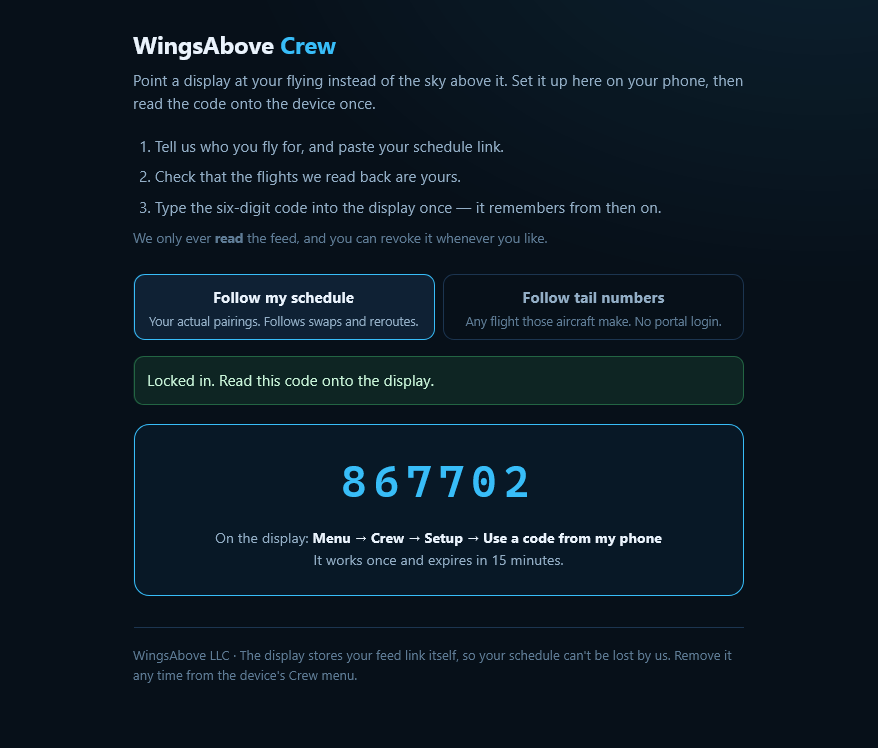
You never type a roster into the 7-inch screen. Each upload creates a one-time pairing code; after the transfer, the code is finished and the schedule lives on the device.
- Open the Crew setup page. Use your phone to start a new schedule load.
- Upload or import your current crew schedule. WingsAbove reads the roster you give it and prepares the flight legs for the display.
- Check what WingsAbove read back. Review the legs it found and what it ignored before anything is transferred.
- Get the one-time pairing code. The setup page generates a six-digit code for this schedule transfer.
- Type that code into the 7-inch display. The schedule is loaded onto the device and the code is consumed. If the roster later changes, repeat the upload with a new code; the new schedule replaces the previous one.
It knows a roster is not just a list of airplanes.
Hotels, report times, deadheads, cancellations and reroutes can all appear in a crew schedule. Crew Mode interprets the roster you upload and decides what belongs on the flight screen. It does not stay connected to the crew portal after that transfer.
| What the uploaded schedule says | What Crew Mode does |
|---|---|
| HTL SEA MARRIOTT | Hotels, reserve, training and report blocks are left off the flight list. |
| DH 2440 DTW–MSP | The deadhead stays in the trip, but is marked as riding, not flying. |
| STATUS: CANCELLED | If the uploaded roster marks the leg cancelled, Crew Mode leaves it out of the active flight list. |
| Same trip · revised sequence | Upload the revised roster and pair it with a new one-time code. The new schedule replaces the previous one on the display. |
| 0087 | Leading zeros survive. The flight number stays the one you were given. |
| No position received | The screen says no signal and keeps the schedule context. It never invents a position. |
One honest limitation: local time at a station appears only when the calendar feed gives WingsAbove enough timezone information to know it is right. If the feed does not, the display leaves the clock off rather than guessing.
Follow aircraft instead of a schedule.
If what matters is a particular airplane rather than a pairing, Crew Mode can be pointed at tail numbers instead. The display watches those aircraft and lights up when one is flying.
- No crew portal required. Add the aircraft you care about.
- Name them for the room. “Dad” or “Grandpa” can be more useful at home than a registration.
- Same live aircraft experience. When the airplane is heard, the screen follows the actual flight.
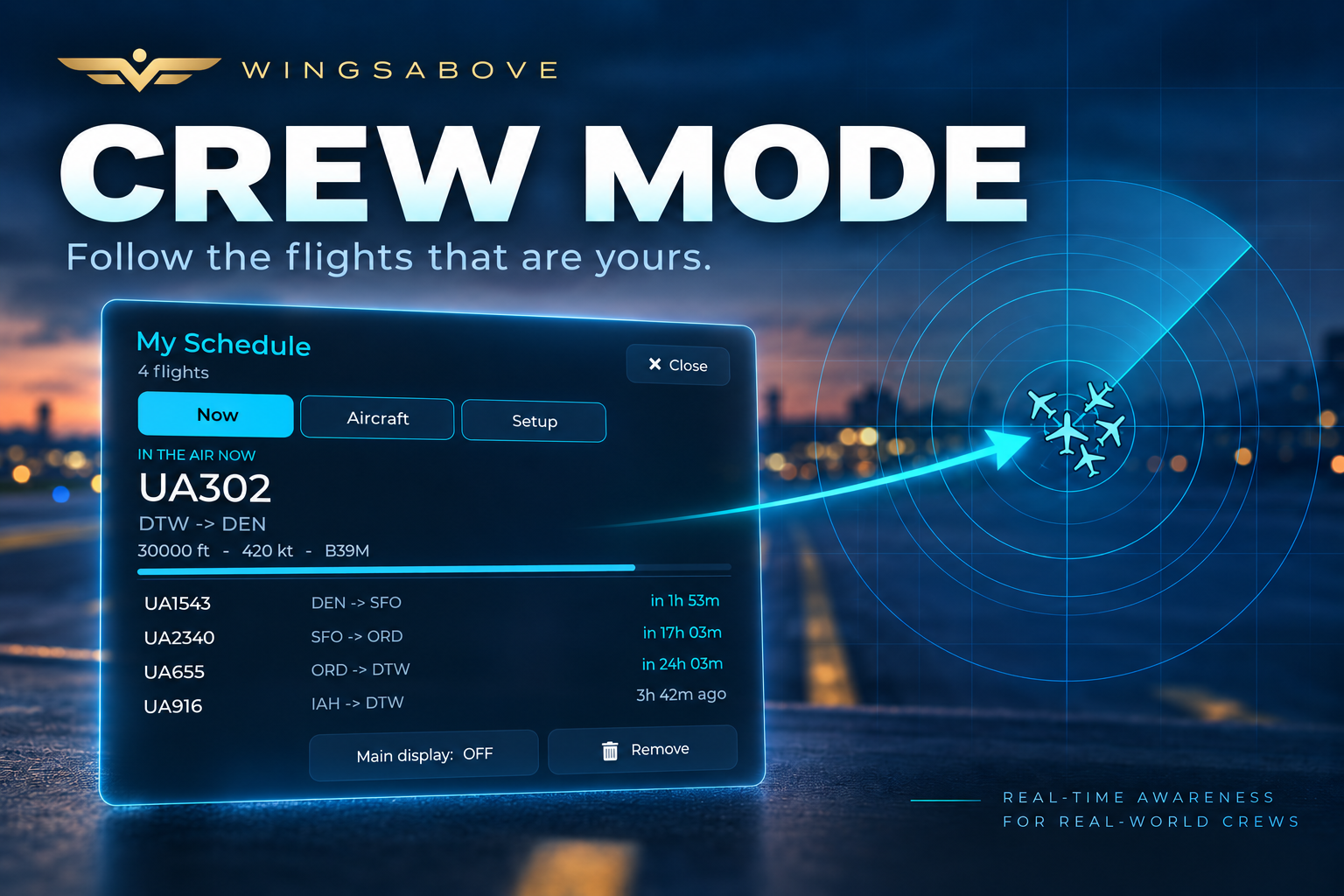
Want us to test Crew Mode with the portal you actually use?
We are validating real crew schedule exports now. Join the pilot list and tell us what portal or schedule format you use. We will not call a carrier supported until we have tested a real schedule from it.
No roster or calendar link goes into this form. We only need your email and, optionally, the name of the portal you want tested.
Crew Mode is an awareness feature, not an operational tool. It watches public flight data against the schedule you most recently loaded. It is not crew scheduling, dispatch or flight-planning software, and roster changes require a new upload.