01The flight card
The home screen. One aircraft at a time on the left (its flight number with the tail number beside it, the airline, the type and seats, the route), every aircraft in range on the radar at right. Almost everything on it can be tapped.
| Tap this | And you get |
|---|---|
| ⚙ MENU | The main menu (section 3). |
| ≣ List | Aircraft in range: every plane near you with its distance and route. Tap a row to put it on the card. |
| ⏸ Pause | Keeps the current plane on the card instead of rotating. A HOLD pill shows while it is on. |
| ⌖ Track | Your tracked flights, or the keyboard to add one. The icon turns gold while anything is tracked. |
| Tower icon | A QR code for live air traffic control audio on your phone. |
| Runway icon | Runway view: the airport drawn under its live traffic (section 8). |
| ACARS | The ACARS reader: real text messages between crews and their airlines. |
| DETAILS | The aircraft’s name and who is flying it, the big picture, the figures as tiles (seats, range, cruise, fuel, length, wingspan) and, when the route is known, its map. Tap the map to follow the flight live; the × or a tap anywhere else closes the sheet. |
| ☆ Star | Saves this aircraft to your Logbook. Tap again to remove it. |
| SEAT MAP, the plane picture, or the type line | Cabin view: the aircraft's typical seat map from above. A380s get an Upper deck button. Tap or swipe to close. A plane with no seat map opens Details instead. |
| ALT FT tile | Altitude band (section 5). Hold the tile to clear the band. |
| The colored pill (PRIVATE JET, MILITARY…) | Replays that aircraft's full-screen moment. |
| The range chip above the radar | Steps the range: 5, 10, 15, 20, 40 nm. |
| EXPAND, or the radar itself | Sky View, the full-screen live map (section 6). |
| The callsign | Flags the artwork for review if the picture is wrong for that aircraft. We fix it, and every display gets the fix. |
02Four screens off the edges
Swipe across the flight card and a screen slides in. The finger has to travel; a tap is not a swipe. In WingsAbove Cloud you can drag with the mouse, click the small tab at each edge, or press the arrow keys.
Airport board
Departures and arrivals for the airport near you. Swipe back left to close.
Live flight
The plane on the card, followed on a map with the distance still to fly. Swipe right to close.
Tracked flights
Everything you are tracking, when there is something to show. Swipe up to close.
Logbook
Your collection and notable finds. Swipe down to close.
04More Settings
Menu › More Settings. Four tabs, and it reopens on the one you used last. Tap a row to step to its next choice; the change applies straight away and is saved.
Traffic
| Setting | Choices | What it does |
|---|---|---|
| Range | 5 · 10 · 15 · 20 · 40 nmstarts on 10 | How far out to look. 5 nm suits a busy airport, 20 to 40 a quiet rural sky. |
| Refresh | 60 · 120 · 300 sstarts on 60 | How often fresh positions are fetched. |
| On the card | 4 · 6 · 8 · 12starts on 12 | How many of the nearest aircraft take turns on the card. The rest stay as faint dots on the radar. |
| Altitude | a bandstarts on Any | Show only aircraft inside an altitude band (section 5). |
Alerts
| Setting | Choices | What it does |
|---|---|---|
| Overhead Alert | On · Offstarts Off | A full-screen DIRECTLY OVERHEAD moment when a plane passes over you, once per plane. |
| Splash | On · Offstarts On | The full-screen moments for special aircraft: a 747, an A380, military, air ambulance, police, emergencies. |
| Splash Time | 2 · 3 · 5 · 8 sstarts on 3 | How long a moment stays up. |
| ACARS | On · Offstarts On | Real crew messages on the quiet-sky screen. |
| ACARS on Standby | On · Offstarts Off | When the sky is empty, the whole ACARS reader becomes the standby screen. |
Display
| Setting | Choices | What it does |
|---|---|---|
| Rotate | 6 · 10 · 15 · 20 sstarts on 10 | How long each plane stays on the card. |
| Backdrop | Off · Faint · Normal · Boldstarts Bold | How strongly the aircraft's picture shows behind the card text. |
| Card Buttons | All · your pickstarts All | Which of the top-row shortcuts ride on the card: Hold, Track, Tower, Runway and ACARS. The row closes up around the ones you keep; List and Menu always stay, and everything is still in the menu. |
| Details | On · Offstarts On | Aircraft pictures, route maps and the DETAILS button. |
| Screensaver | Off · 90 sec · 5 · 10 · 20 · 30 minstarts Off | Left untouched that long, the screen drifts to the full-screen Sky View, which is the screensaver. |
| Sleep Schedule | On · Offstarts Off | Dark between Sleep at and Wake at. A tap during the night gives you 90 seconds of screen. |
| Sleep at · Wake at | − / +11pm · 7am | Five-minute steps. Hold − or + to move faster. |
| Temperature | °F · °Cstarts °F | The unit for the airport weather in Runway view. |
| Sky View Weather | On · Offstarts Off | Sky View opens with the rain layer on. Same switch as the Weather button in Sky View. |
| Radar Icons | Aircraft · Arrowsstarts Aircraft | Aircraft shapes or simple arrows on both radars. |
| Crew Picture | On · Offstarts On | The aircraft picture beside the route on the Crew screens. |
| TFR Airspace | On · Offstarts On | FAA temporary flight restrictions outlined on both radars (section 6). |
System
| Setting | What it does |
|---|---|
| WiFi Setup | Scan for networks and type a password. The display uses 2.4 GHz Wi-Fi. Hotel and airport networks with a sign-in page are handled: the display says Wi-Fi sign-in needed and Sign-in help walks you through it. After a minute offline, a Wi-Fi setup button also appears on the main screen. |
| Demo Mode | A built-in reel of sample aircraft in place of live traffic. Handy with no Wi-Fi. |
| Demo Tour | Walks every screen hands-free, for showing it off or filming. Any touch stops it. |
| Factory Reset | Erases location, filters and Wi-Fi, then restarts. It asks first. |
05Filters and the altitude band
Two ways to choose what takes a turn on the card. Neither removes anything from the radar: filtered aircraft stay as faint dots, and an emergency squawk always shows.
Filters Menu › Filters
Seven categories, all on to start. Tap any mix, then Done: Commercial, Police / EMS / Fire, Cargo, Light GA, Business & private, Helicopters and Military. Living near a flight school? Switching off Light GA clears the trainers that circle the field for hours.
Altitude band tap ALT FT on the card, or More Settings › Traffic › Altitude
Pick Any altitude, Below 10,000 ft, 10,000 – 30,000 ft or Above 30,000 ft, or set your own floor and ceiling in 1,000 ft steps. While a band is on, the ALT tile says so (for example under 10k). Hold the tile to clear it.
06Sky View and restricted airspace
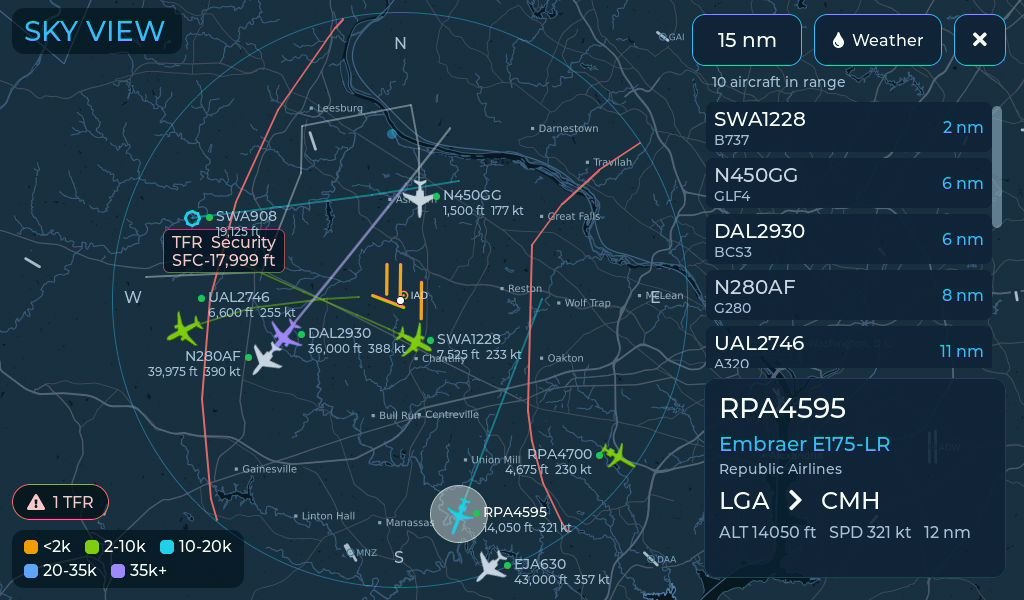
Tap the radar on the card, or EXPAND, and the map fills the whole screen. The aircraft move smoothly between updates, each trails the path it has flown, and each is drawn with its own silhouette in the color of its altitude, with a key in the corner: orange low, green climbing, blue in the cruise. Everything in range is listed down the right side. Sky View is also what the screensaver shows. The X closes it.
Drill into any aircraft
Tap an aircraft, a dot or a row in the list for its details panel; tap the panel for that flight's full Details. The list fits five whole rows on the display. Close Sky View and the card carries on with that plane.
Zoom the sky
The range button at the top steps through 5 to 40 nm, like the chip on the card.
Rain on the map
The Weather button lays live rain over the map, and it stays on once you choose it. Sky View Weather in More Settings is the same switch.
How fresh is that position?
The small dot by each label: green under 45 seconds old, amber under 2 minutes, gray older.
Restricted airspace, outlined
The FAA's temporary flight restrictions (presidential visits, stadiums, air shows, launches, security areas) drawn in red on both radars, with their altitudes. Tap a label or the TFR button in the corner and a window lists each one: place, kind, altitudes, the reason, when it ends, and its NOTAM number. Each one disappears on its own end time. Turn it off with TFR Airspace in More Settings › Display. For awareness, not for navigation.
07Following a flight
Ride along on the map
Swipe left on the card, or tap the route map in DETAILS. The flight on a map, its phase (On approach to…, Cruising at…) and the distance still to fly. Tap the map to zoom out: Route, Regional, National, Wide.
The plane's story
On the live flight screen, Story shows where that exact aircraft has been flying lately and the route it filed.
Any flight, anywhere
Menu › Track Flight, then type the radio callsign (DAL1878) or a tail number (N123AB). Recent searches become one-tap chips. Track up to six flights; the list marks a departure, landing or gate change in amber. Track Flight on an ACARS message does the same and takes you straight to the flight.
Arrival dashboard
With WingsAbove Plus, the live flight screen adds the airline's own times: departed, lands, early or late, terminal, gate, baggage claim and alerts.
08Board, runway, ACARS, logbook
Airport board
Departures and arrivals with times, cities, gates and status, refreshed every 90 seconds. Tap a row to follow that flight. ATC gives you the tower's audio QR code.
The airport, drawn under the traffic
The airport itself (taxiways, aprons, terminals and gates, from OpenStreetMap) with the active runway highlighted and every movement labeled: on final, landing, takeoff roll, holding, taxiing, go-around. Aircraft use the radar's plane shapes. + Full map opens the full-screen field with every aircraft labeled; tap a label to open that flight. It refreshes every 30 seconds. Nearby switches to another airfield close to you. Big airports are mapped in detail, small fields usually show runways, taxiways and hangars but no gates, and the first open of a given airport can take a minute.
What the crews are saying
The ACARS button on the card opens the full-screen reader: real messages between crews and their airlines, newest first, sorted into categories, refreshed as new ones arrive. Tap a message to see more. When the flight is known, TRACK FLIGHT follows it.
Your collection
Aircraft types and airlines seen, your notable finds and today's numbers, kept across restarts. Each find shows when it passed and how close it came; within 2 nautical miles it is marked OVERHEAD. Notable chooses what counts (rare types, private jets, military, VIP, medevac, police, fire, emergencies, and optionally cargo and long-haul). Tidy clears the automatic finds and keeps the ones you starred.
Inside the plane
The plane picture itself, the SEAT MAP button after the seat count, the type line, or the Cabin button on Details opens the seat map: 103 aircraft types, from a Cessna 172 to both decks of the A380. It is the typical layout for that type, not your seat assignment; airlines arrange their own.
When the sky is quiet
A sweeping radar with today's planes seen, farthest and notable, and an ACARS message you can tap open.
09Setting your location
Menu › Set Location. The radar, Sky View and airport board all follow it.
- Search by city or airport name: type Dulles or Orlando and pick from the list.
- Airport code, US ZIP code or Lat / Lon for an exact spot.
- Saved places: the places you have used are kept. Tap ★ to pin one to the top, or hold a recent one to make it a favorite.
Moving resets the range to 10 nm, flies you to the new spot, and loads its maps.
10WingsAbove Cloud in your browser
Cloud is the same WingsAbove, menus and all, running in a browser on an iPad, a tablet, a laptop or a TV's browser at https://cloud.wings-above.com. It is one picture that fits whatever screen it is on. The Settings button in the bottom-left corner holds the few things that belong to the screen you are using rather than to your account.
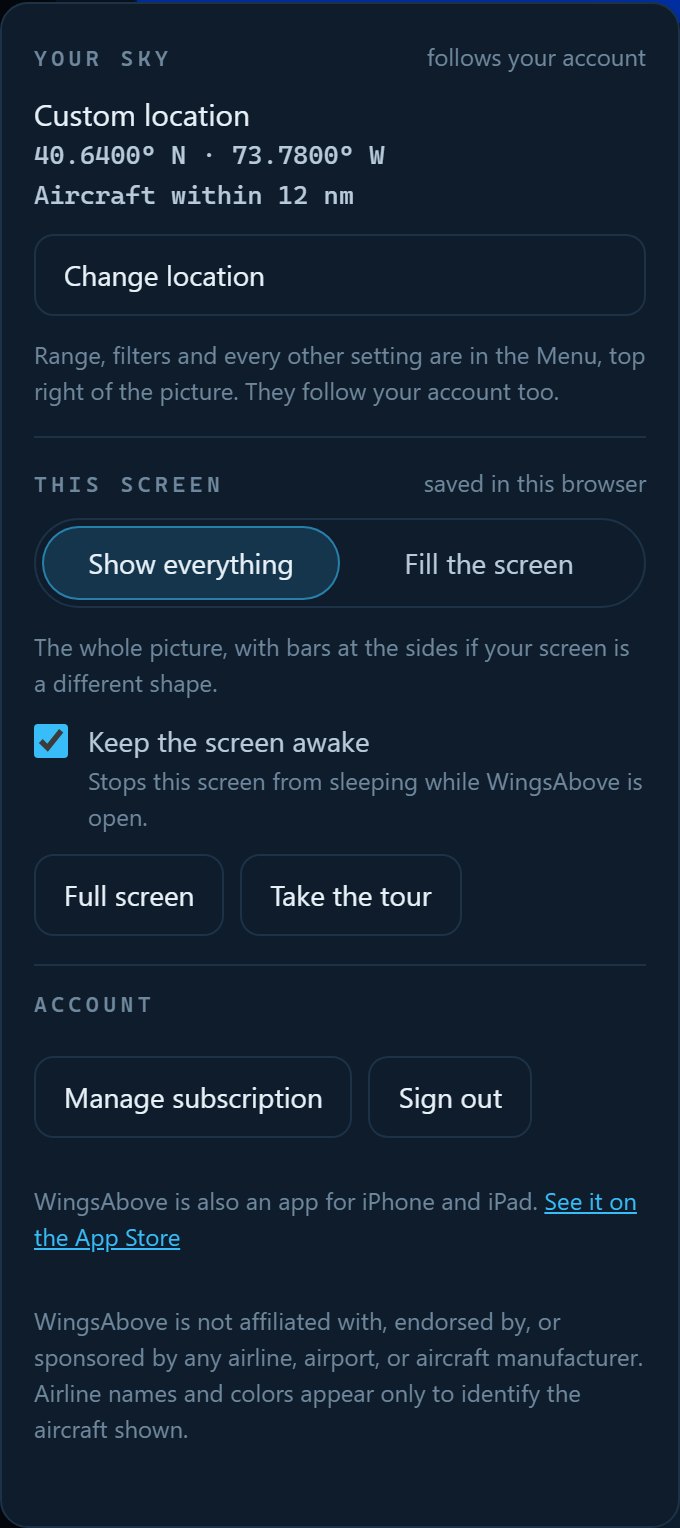
| Setting | What it does |
|---|---|
| Change location | Moves your sky. It follows your account, so every screen you sign in on goes there too. |
| Show everything · Fill the screen | Show everything fits the whole picture, with bars at the sides if your screen is a different shape. Fill the screen removes the bars and trims the edges instead. |
| Keep the screen awake | Stops a tablet or laptop from sleeping while WingsAbove is open. |
| Full screen | Hides the browser's bars, where the browser can. |
| Take the tour | The six-step tour of the screen: the card, the seat map, the buttons across the top, the four edge screens, the radar and the menu. It shows itself once, the first time a browser or the app opens the display; this replays it whenever you like. |
| Manage subscription · Sign out | Change or cancel your plan, or sign this browser out. |
11System Status
Menu › System Status. The health check, and a few useful switches.
| Item | What it does |
|---|---|
| Software | The version you are on. When an update is waiting, tap it to install (about a minute; keep the power connected). |
| Update Artwork Now · Art Sync | Fetches new aircraft and airline artwork now, or switches the automatic sync on or off. |
| Cast | Screen Cast: shows the display live in a browser on any device on the same Wi-Fi, at the address on this screen. Great for clean screenshots. |
| Credits | Where the flight data, maps and messages come from. |
| Reboot | Restarts the display. |