Hi, Ed here.
A new update for your WingsAbove display, v2.2.160, is going out over Wi-Fi now. WingsAbove Cloud gets the same update the next time you open or reload it.
What's new
Restricted airspace on your radar. The FAA's temporary flight restrictions now show up on the small radar and in Sky View, outlined in red where they cross your range: a presidential visit, a stadium on game day, an air show, a rocket launch, a standing security area. Each one carries a small label with its kind and the altitudes it covers. Each one also disappears on its own when it expires. If you've ever wondered why the sky over a stadium went quiet on a Saturday, this is usually why.
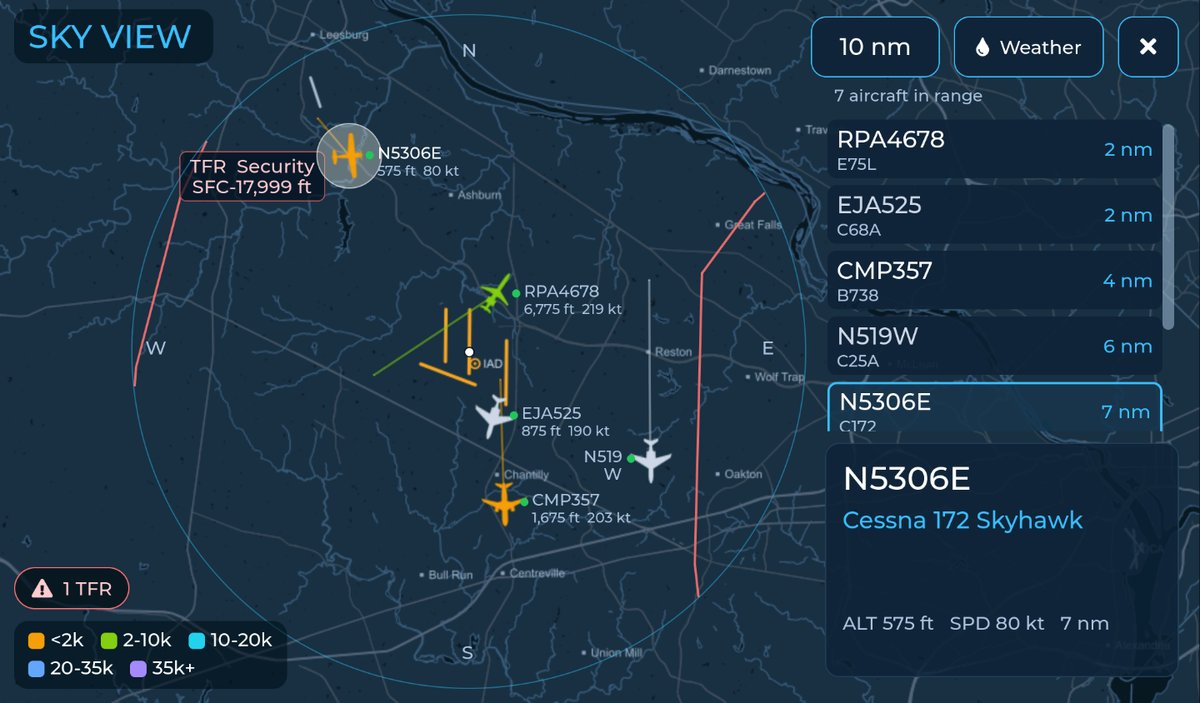
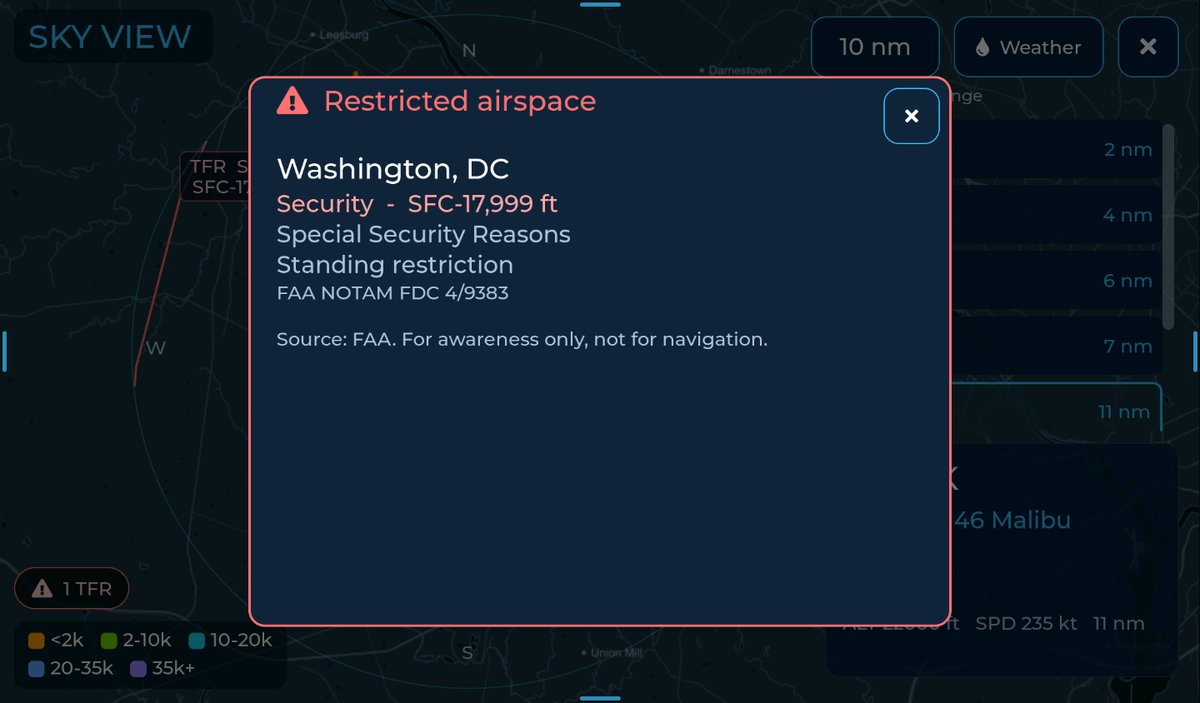
In Sky View, tap a label or the TFR button in the bottom corner for the plain-English version: where it is, what kind it is, the altitudes, the reason, when it ends and its FAA notice number. It's there so you know why the sky looks the way it does. It is for awareness, not for navigation. If you'd rather not see it, Menu › More Settings › Display › TFR Airspace turns it off.
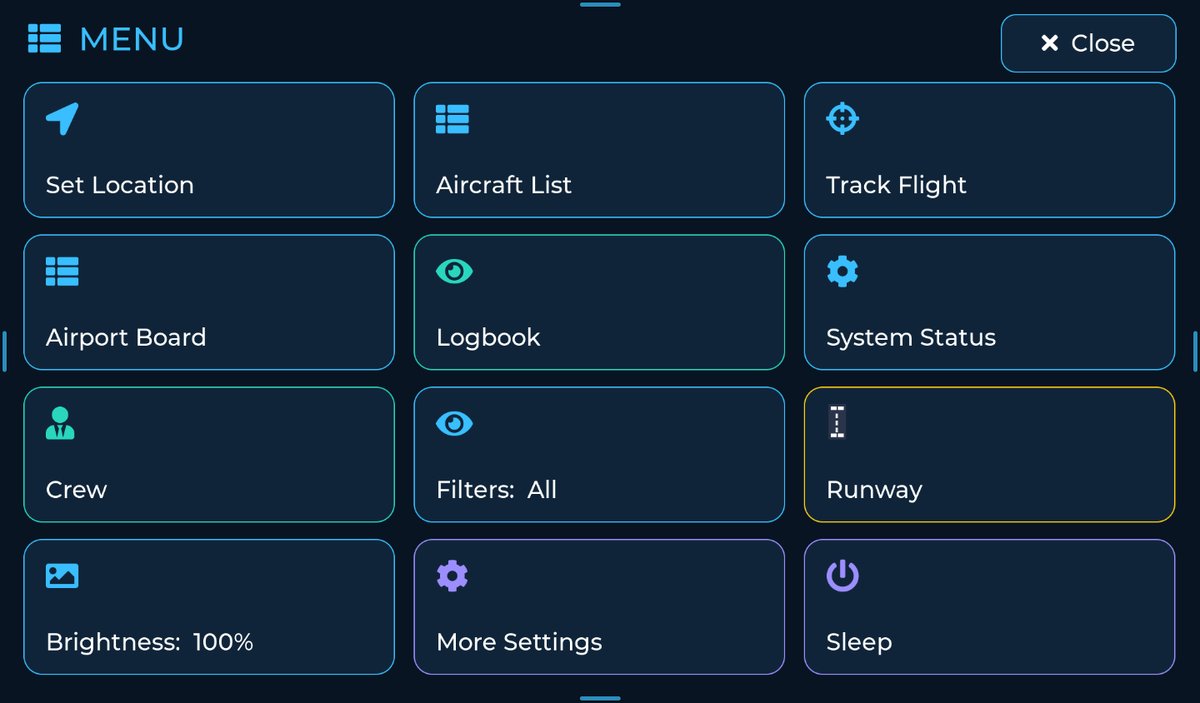
Close is always in the top-right corner. An owner pointed out that the menu didn't play by its own rules. Close was a red tile at the bottom of the main menu, and on More Settings the top-right corner was Back, so reaching for "back" kept closing everything. Now every screen works the same way. Close is top right and takes you straight back to the main card. Back is top left and goes one step back. Sleep moved into the bottom-corner tile Close used to have.
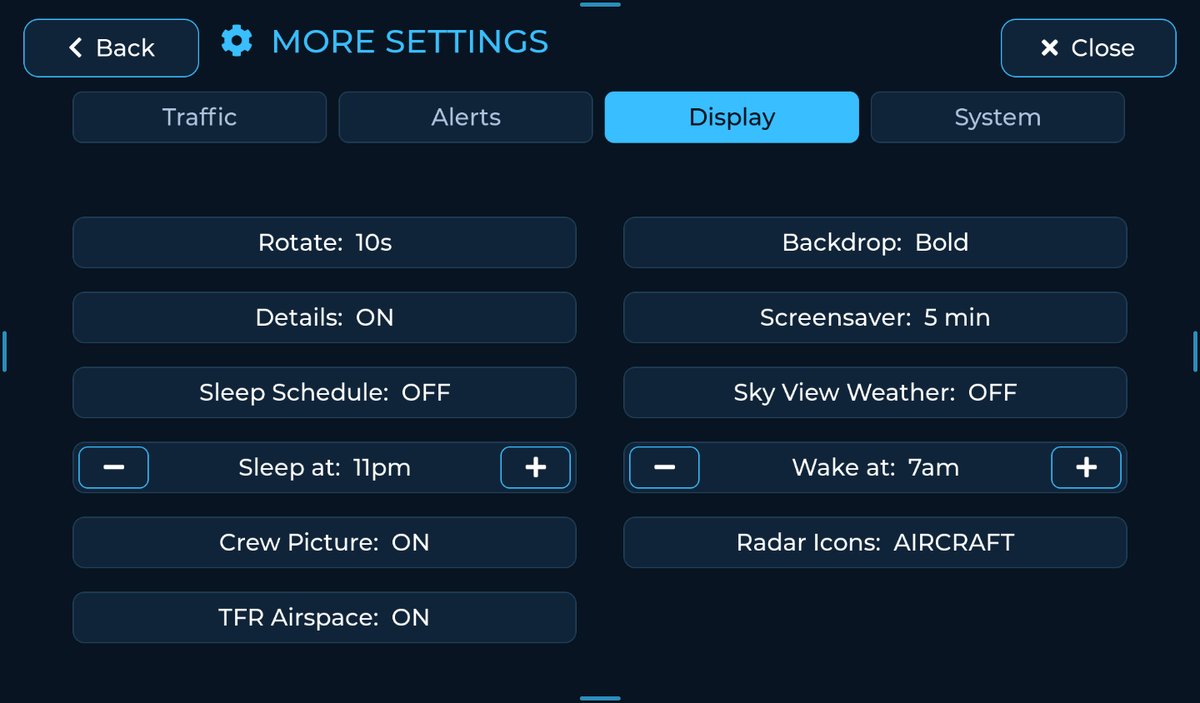
Choose when the screensaver starts. The screensaver used to start after 90 seconds, or not at all. It now steps through 90 seconds, 5, 10, 20 and 30 minutes, so you can let a quiet card sit longer before the display drifts to the full-screen Sky View. You'll find it in Menu › More Settings › Display › Screensaver. It still starts out off.
A Skip button when artwork is slow. When the display starts up, it sometimes stops on the Artwork screen to download new pictures first. Every so often one download crawls, and the display used to wait up to ten minutes with nothing to tap. Now there's a Skip for now button, and the display moves on by itself after 90 seconds without progress. The missing picture comes down later, in the background.
Small planes look like small planes. A Piper Cub was turning up on the radar with a jet's outline. Some older and vintage types, like the Cub, a few classic Cessnas and some trainers, weren't on the display's list of light aircraft. A slow, low aircraft whose type couldn't be confirmed also fell back to the jet. Those types are on the list now, and an unknown aircraft flying low and slow gets the small propeller outline. The Light GA filter goes by the same list, so it hides them too if you've switched it off.
Long names fit on the card. A long operator name, like Las Vegas Metropolitan Police Department, used to run underneath the radar. Now the name steps down a size or two until it fits. Some registry names arrive cut off mid-word, like a NASA research jet listed as "Flight Researc". When the cut word is a common one, the display now finishes it.
WingsAbove Cloud
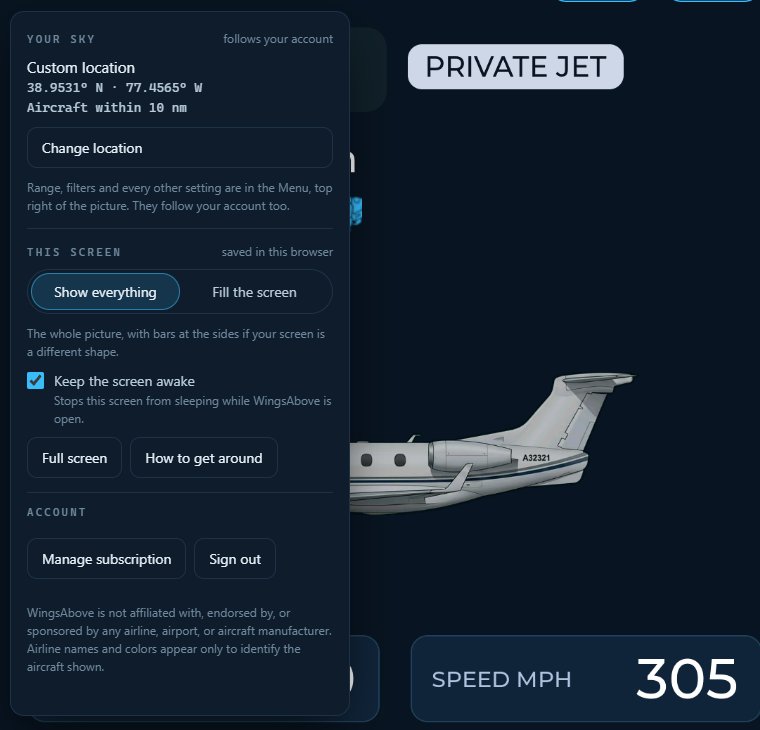
Cloud fits your tablet and browser better. The Settings panel (the Settings button in the bottom-left corner of Cloud) has been cleaned up:
- Show everything keeps the whole picture, with bars at the sides if your screen is a different shape.
- Fill the screen uses every inch and trims the edges.
- Full screen hides the browser.
- How to get around replays the quick tour.
On an iPhone or iPad, it shows how to put WingsAbove on your Home Screen (Share, then "Add to Home Screen"), where it opens full screen with no browser bars. Hold a phone or tablet upright and a small note suggests turning it sideways for the full-size picture.
Sharper seat maps on tablets and big screens. On a high-resolution screen, the cabin seat maps in Cloud were a stretched copy of the display's version, which made them soft. Cloud now gets a full-resolution version, so the seat rows and labels stay crisp on an iPad or a 4K monitor.
One WingsAbove on every screen. The separate "Big screen" look is gone. Cloud now always shows the same picture as the desk display, so there's one thing to learn. If you had Big screen turned on, Cloud opens as the regular display the next time you load it.
How to get it
Your display installs it on its own the next time it checks, usually within a few hours. You'll see a Software Update screen for about a minute while it installs. Keep the power connected and it restarts by itself. If you'd like it right away, unplug the display for a few seconds and plug it back in.
To check you have it: Menu › System Status shows v2.2.160.
Every setting, in one place
We've added a page that walks through every button, menu, swipe and setting, with what each one does and what it starts on: https://wings-above.com/guide/settings.html. There are a few things in there that are easy to miss.
Keep the notes coming
The corner buttons, the screensaver steps and the Cub fix all came from owners who wrote in. If something on your display bugs you, or you wish it did something it doesn't, write to hello@wings-above.com. I read every one.
Ed
WingsAbove LLC · Minnesota